October 2026
VideoMeet Kling 4: your product, in motion
Kling 4 is live for everyone: clips up to 30 seconds, up to seven reference Elements, video editing and up to eight ordered intermediate keyframes. A first frame works together with characters. Watch the product film and full source clips, plus Vini speaking English. Our Russian-speech result is one short cartoon-character test.
Read the full case →PublishingReels and images to Instagram, straight from the studio
Connect a professional Instagram account in your account screen and publish a finished video as a reel, or an image as a feed post. A vertical image is placed whole inside the frame with blurred margins, never cropped, and the form shows that frame before sending. While the studio’s app is going through Meta’s review, only accounts added to its roles can connect.
Read the full case →CharactersYour characters in a finished clip
The Video node now has a Recast characters role: connect a clip and one photo per replacement character. MiniMax H3 replaces up to four people while retaining the source scene’s structure and audio. The walkthrough shows real trials and details to review after a swap.
Read the full case →VideoAvatar: your character follows motion from a clip
An image sets the character and setting; a reference clip drives movement and expressions. DreamActor 2 now joins the Avatar role with source clips up to 30 seconds, alongside Kling and MiniMax H3. See how to prepare an image and how the result differs from recasting.
Read the full case →DialogueKling LipSync: another way to give characters a voice
Kling LipSync is now available in LipSync: connect a video and a speech or vocal recording. It animated a 3D character’s mouth in our trial. Start with a short close-up of one character and a clean voice track.
Read the full case →AudioPrepare a song: style, clean lyrics and voice roles
Choose genre, mood and vocals with preset chips in Music Caption Rewriter. The node outputs clean lyrics separately and maps voice roles. ElevenLabs Music uses that breakdown to plan the song; distinct voices are not guaranteed with MiniMax.
EditingBuild your video on a timeline: clips, song and voice
In Montage Studio, reorder clips, trim their edges and mute unwanted sound. Split a song and repeat the part you need; song and voice have their own tracks. Adjust where each recording starts and ends, listen to the assembly and save the result.
StudioChoose a design and save your series style
Ten ready-to-use designs now have short descriptions and video examples in the library. Choose one, refine the composition and save the style you used for your next episode.
Read the full case →ProjectsYour world and series rules, kept in shared lore
The Lore wizard helps collect your characters, world rules and episode format into a workspace-wide context. Its saved documents are available to the text nodes in that workspace’s projects, and you can keep an episode log alongside them.
AudioAsk a question about the sound
The Audio Breakdown node takes a recording or a video’s soundtrack and answers your question in text. Ask it to describe music, speech or other sounds, then pass the analysis to the next step in your project.
PublishingYour agent prepares the post — you review and publish
Your agent can prepare a caption, account and applicable cover frame for a finished video. Follow the link to the prefilled form in Studio, check the settings and confirm publication yourself.
Read the full case →StudioUpload source files up to 2 GB
Upload a file up to 2 GB to Studio, such as your own video or a longer audio recording. Once uploaded, the material is available in your library for further work in the project.
September 2026
PublishingSend finished videos to TikTok and YouTube
Connect your accounts and send finished videos straight from the studio. Publish to TikTok or send a draft to its app; if TikTok currently limits direct publishing for your account, the form says so before sending, and drafts still work. Upload to your YouTube channel with a title, description, and your visibility choice, then check the actual access on YouTube. The guide covers three practical workflows.
 Open full-size screenshot ↗Read the full case →Studio
Import YouTube videos in your chosen quality
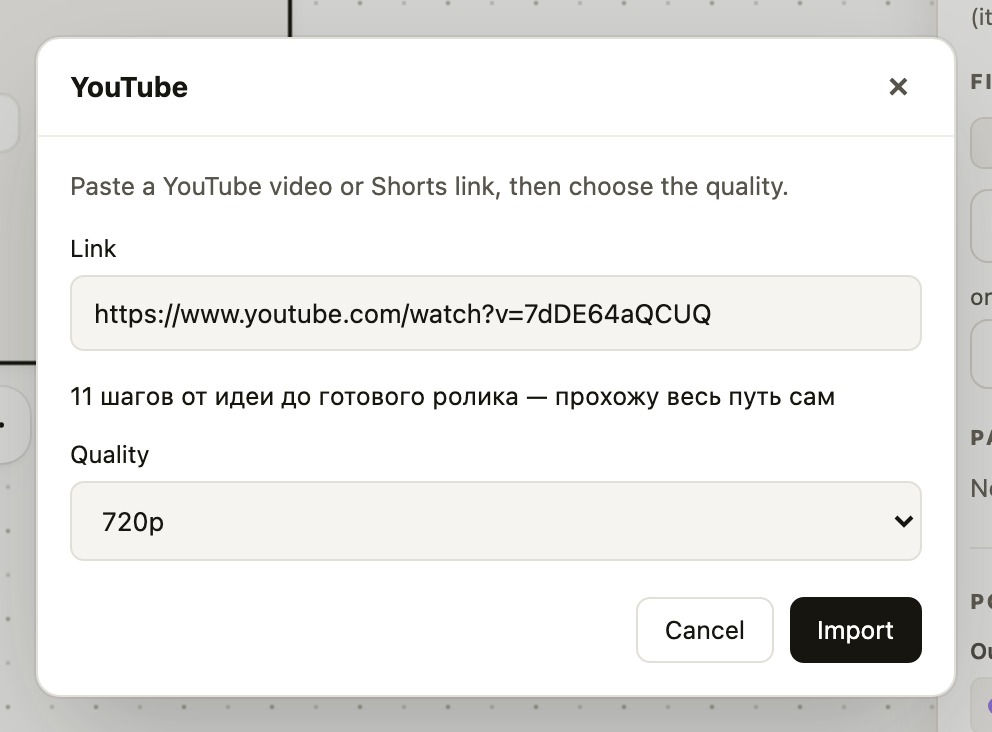
Paste a YouTube video or Shorts link, choose an available quality and import it into your project. The studio saves the complete video with its original audio track. You can also use the YouTube button on a video card.
 Open full-size screenshot ↗Studio
Import from TikTok and Instagram
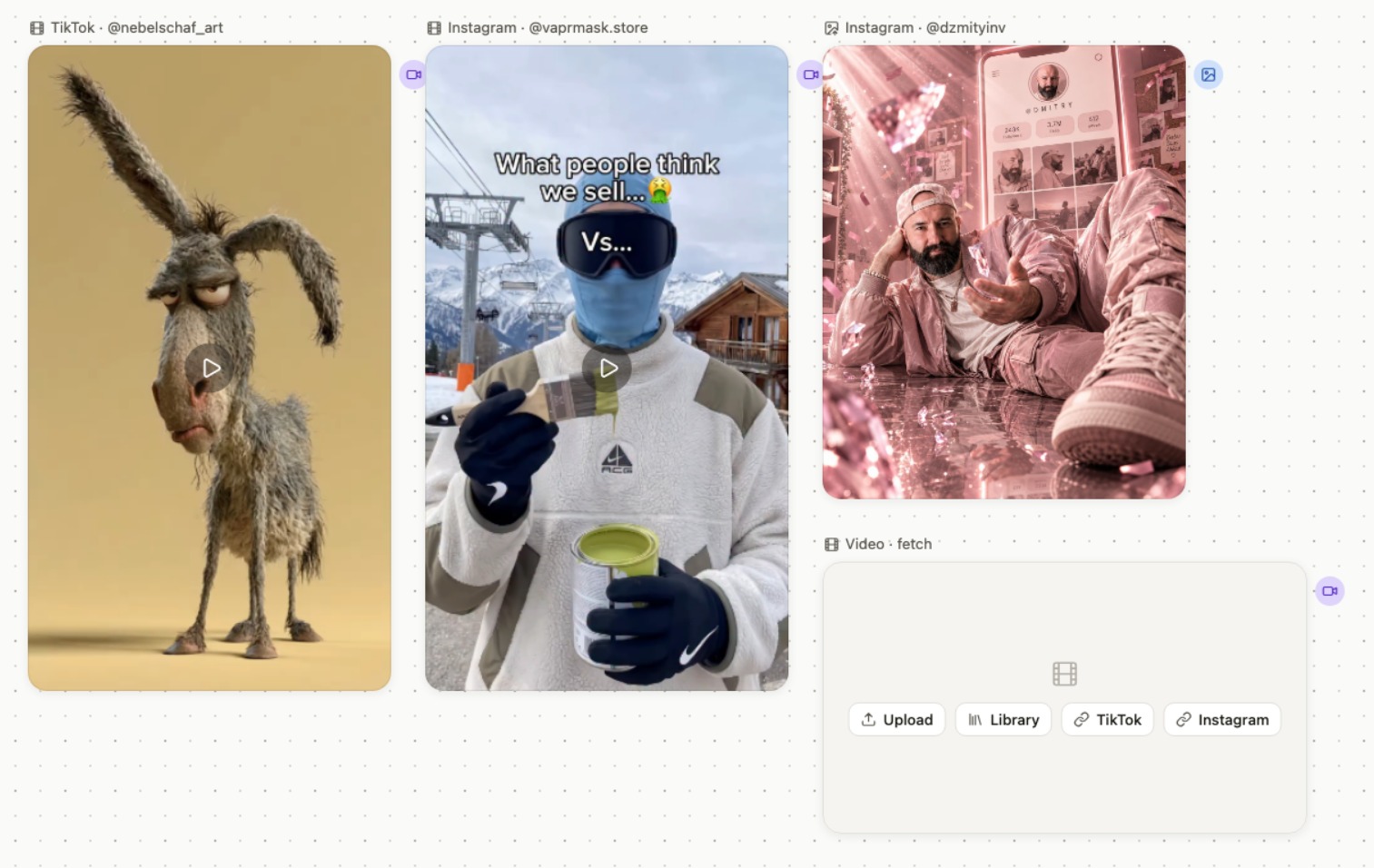
Paste a public TikTok or Instagram video link onto the canvas to add it to your project. You can also import Instagram photos and entire carousels. Platform buttons are available on file cards too; imported media stays in your project library for editing and use as references.
 Open full-size screenshot ↗Studio
The new Vini Studio: keep your work in view
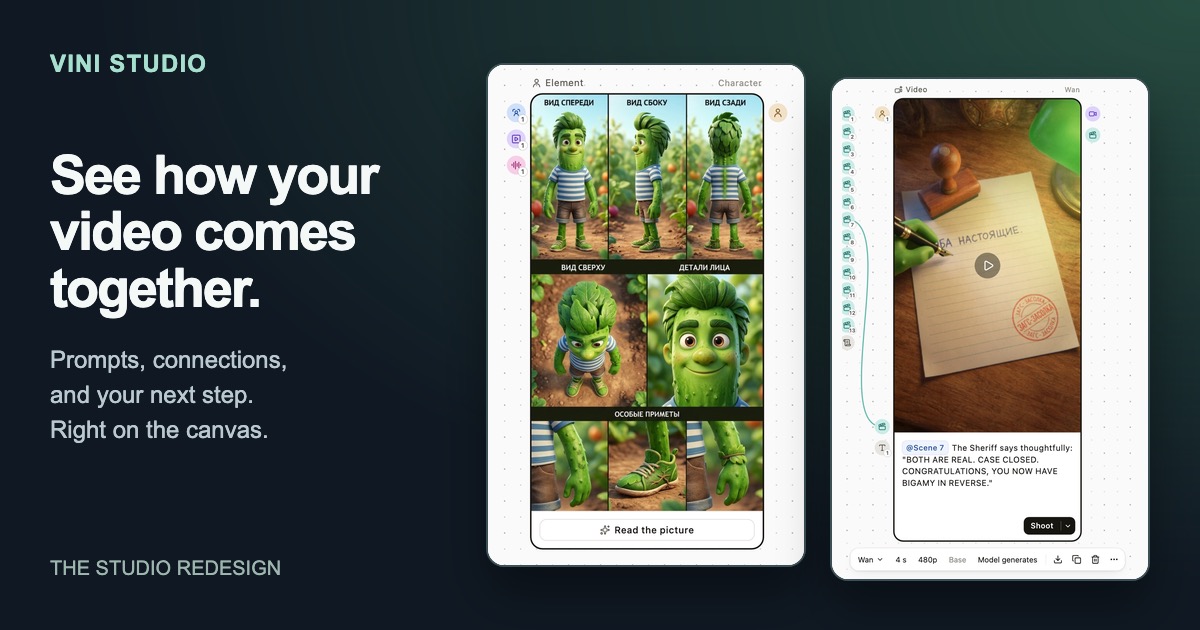
Edit prompts right on the cards and use source chips to see where the text came from. Drag a connection into empty space to choose your next step: draw an image, animate a frame, or use it as a reference. Models and quick actions sit beside the result, with light and dark palettes for your workspace. See it in action in the Garden City project.
 Open full-size screenshot ↗Read the full case →Text
Model update: Opus 5.5 and Fable 5.1
Claude Opus 5.5 is now the default for new text nodes. Claude Fable 5.1 is available to choose in the text generator and scriptwriter.
StudioOne prompt, more image variations
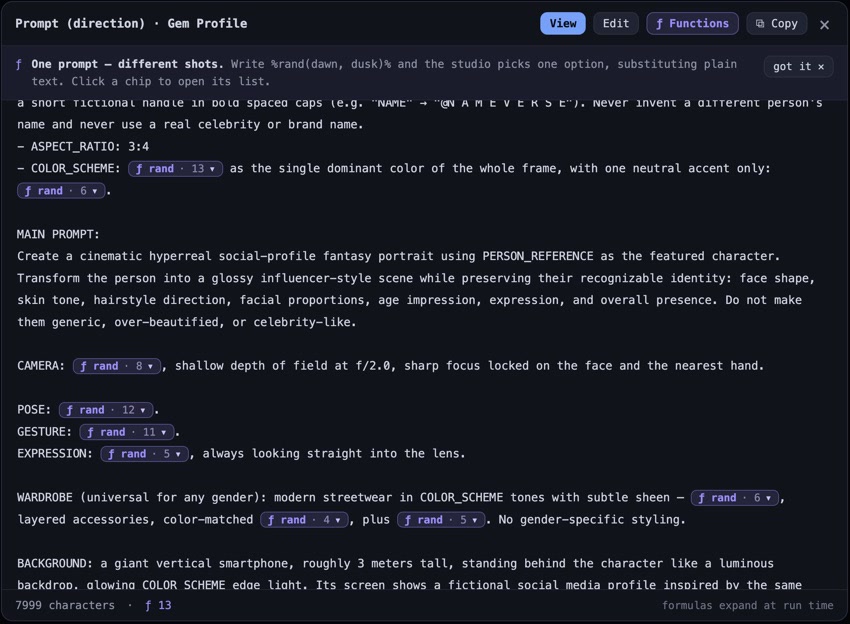
List words and phrases with %rand(a, b)% and the studio picks an option before generation. Purple chips open each list in the editor, and Regenerate makes a fresh selection. See the GEM Profile recipe change colors, camera, pose, and lighting without rewriting the whole prompt.
 Open full-size screenshot ↗Read the full case →Images
GPT Image 2.5 is now in Vini Studio
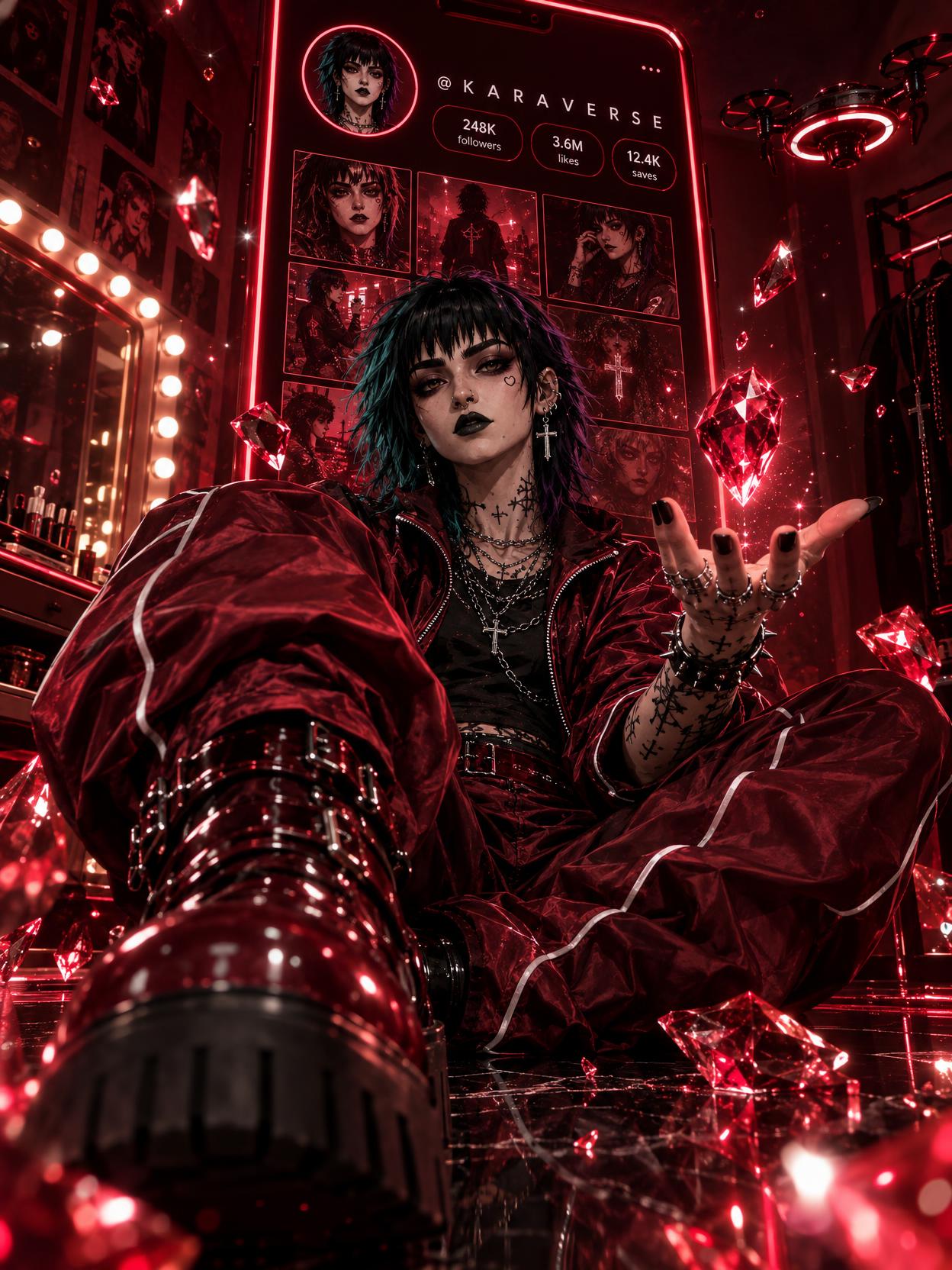
Our new default image model offers five quality levels and reference-based generation. See Kara and Rave in different palettes, learn practical prompting techniques, and try the Gem Profile recipe with your own character.
 Open full-size screenshot ↗Read the full case →Access
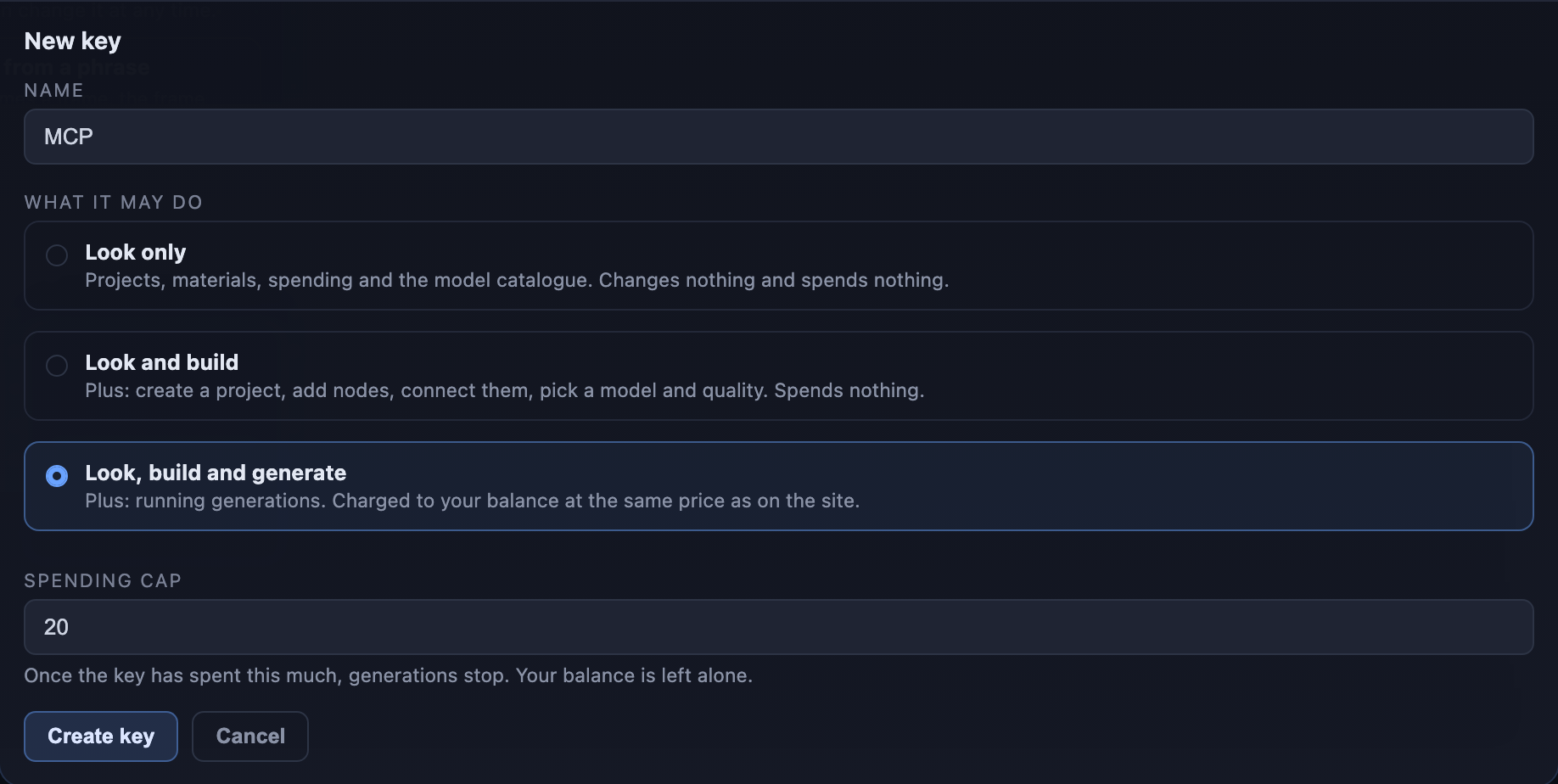
Connect your agent to Vini Studio through MCP
Your agent can read projects and the library, build a graph, and run generations. Create a key in the API tab, choose its permissions, and set a spending cap. The guide covers Claude Code, Cursor, VS Code, and Codex, with a sample task and what happens to the result.
 Open full-size screenshot ↗Read the full case →Video
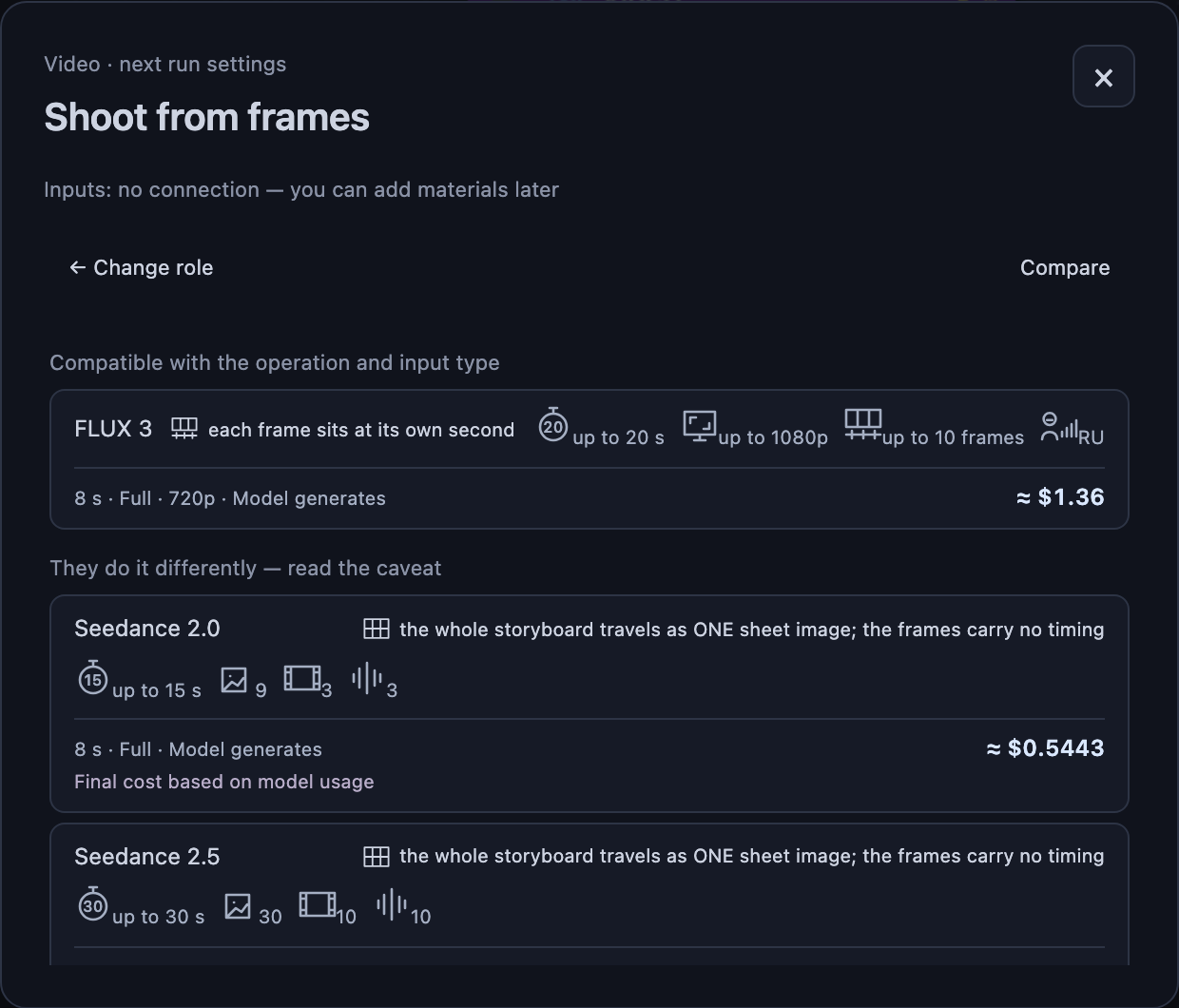
Shoot from frames: several moments, one clip
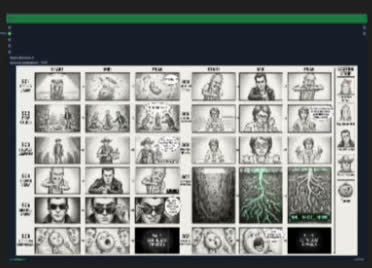
The Video node has a seventh role: Shoot from frames. FLUX 3 uses separate images at specific times; models with reference inputs take a finished storyboard sheet, and Kling also needs a starting frame. The selector explains the difference. The guide shows what to prepare and where to connect it.
 Open full-size screenshot ↗Read the full case →Video
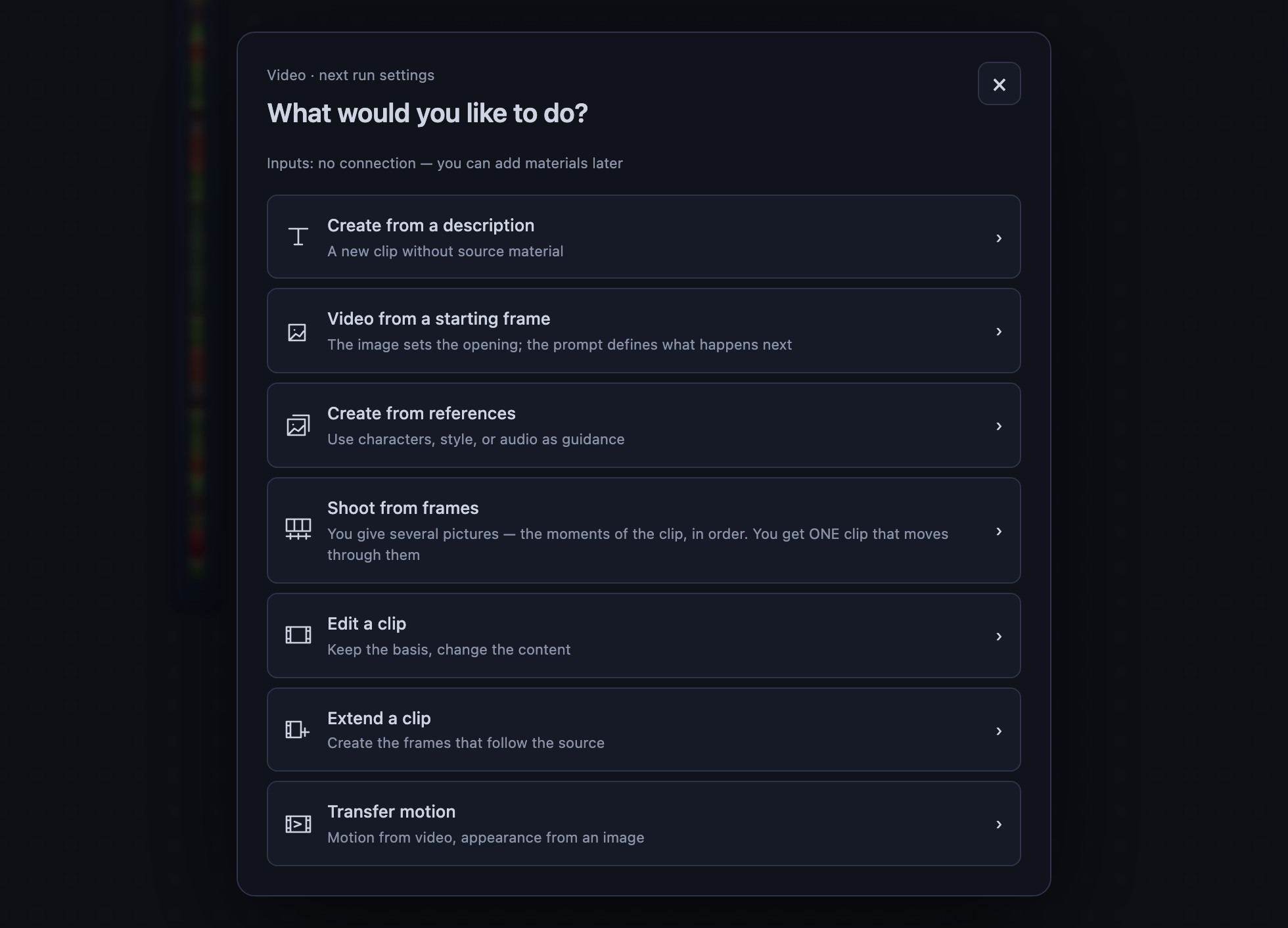
Start with the task, then choose the model
Choose by task instead of guessing by model name: video from a starting frame, generation from a description or references, editing, extension, and motion transfer. Compatible models come first; the rest stay visible with an explanation. Selected settings appear at the top of the node, and the selector compares up to three models. The guide explains what to connect for each task, including keyframes and audio.
 Open full-size screenshot ↗Read the full case →Audio
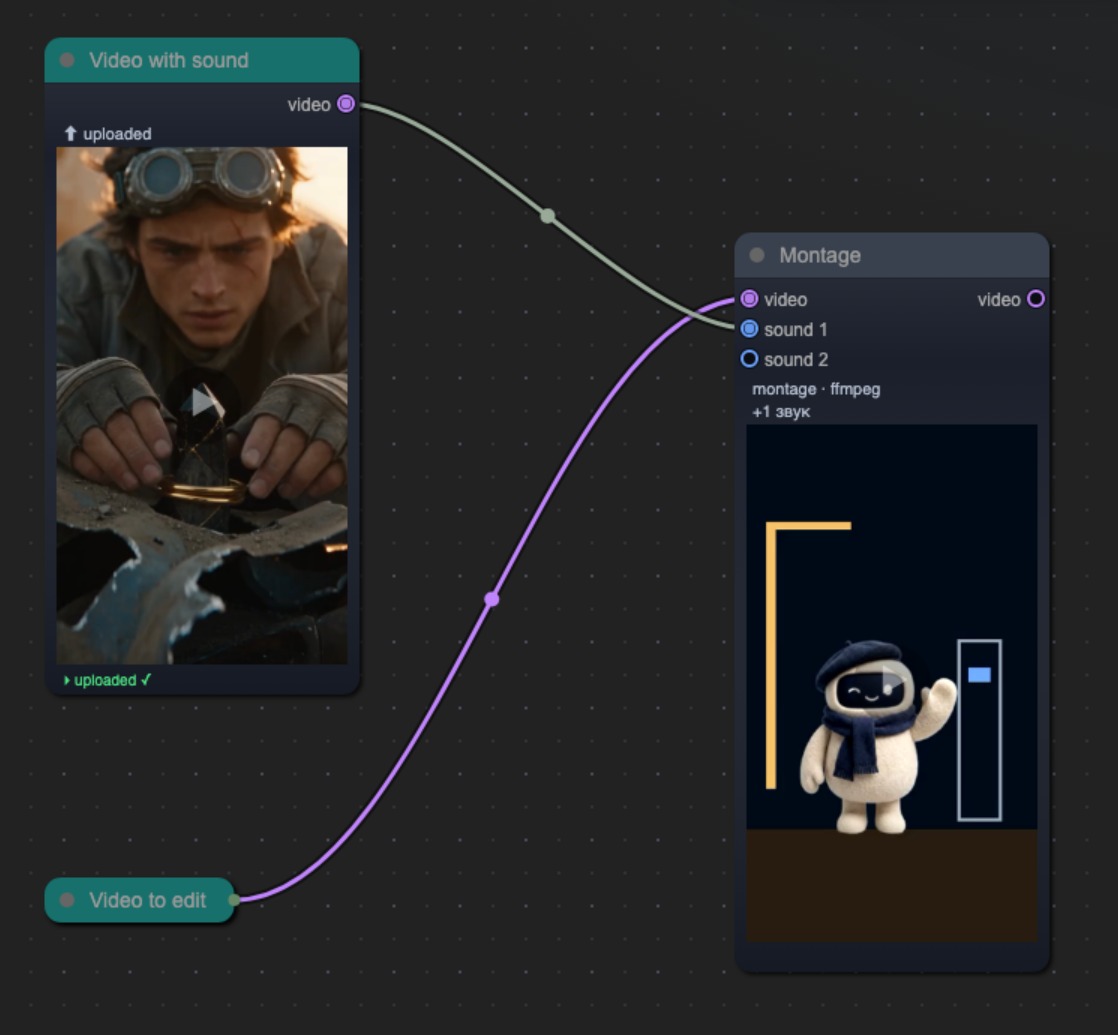
Use a video’s soundtrack in your edit
Connect a video to “sound 1” on the Clip trim node and the studio extracts its audio track automatically. Use that track when editing another clip; other audio inputs now accept video too, including Montage and Lip-sync. Extraction is free. If the video has no audio track, the studio lets you know.
 Open full-size screenshot ↗Video
Choosing a video model is simpler
The list now has 8 video models instead of 15: generation and editing variants are grouped under Kling, Grok Video 1.5, and HappyHorse 1.1. In the Video node, choose a model, then pick a mode from the actions it supports. Existing projects keep their previous settings, and generated results remain cached.
VideoChoose quality within the model
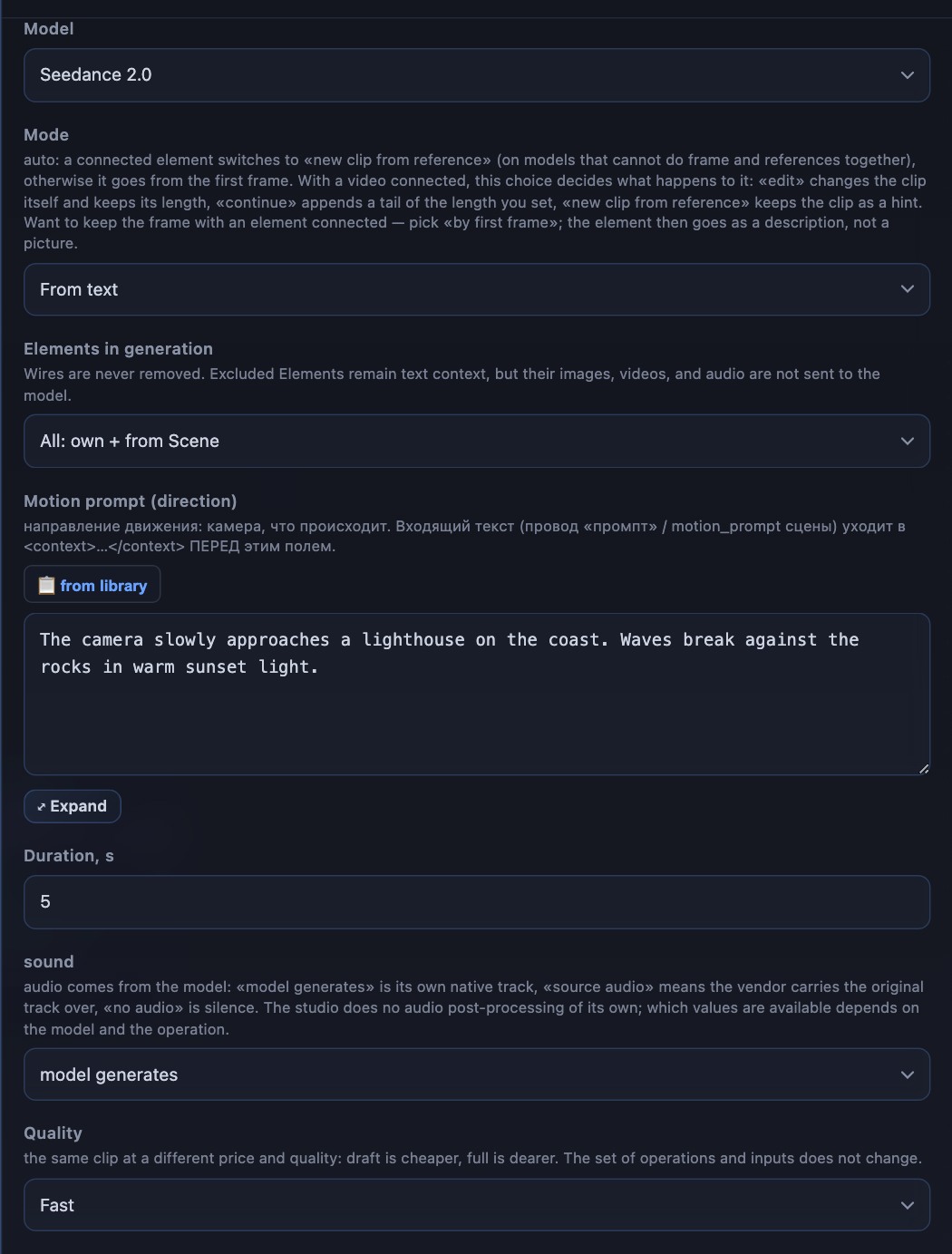
Seedance 2.0 Mini and Fast are now options in the Quality field: Draft, Fast, or Full. FLUX 3 offers Draft and Full in the same field. Open All parameters in the Video node to choose quality for your next run.
 Open full-size screenshot ↗Video
Video editing and motion transfer in the Video node
Kling, Grok Video 1.5, and HappyHorse 1.1 now have a video editing mode: connect a clip and describe your changes in the prompt. Kling also offers motion transfer: an image provides the character, while a video provides the movement. Choose these modes within the corresponding model.
VideoSet resolution and audio before you run
All parameters now includes a resolution selector for models that support it; the updated Gemini Omni Flash offers options from 360p to 4K. The “sound” field offers “model generates”, “source audio”, or “no audio”, depending on the model and mode. The cost estimate reflects your settings before you run.
VideoVideo key frames: put motion on the timeline
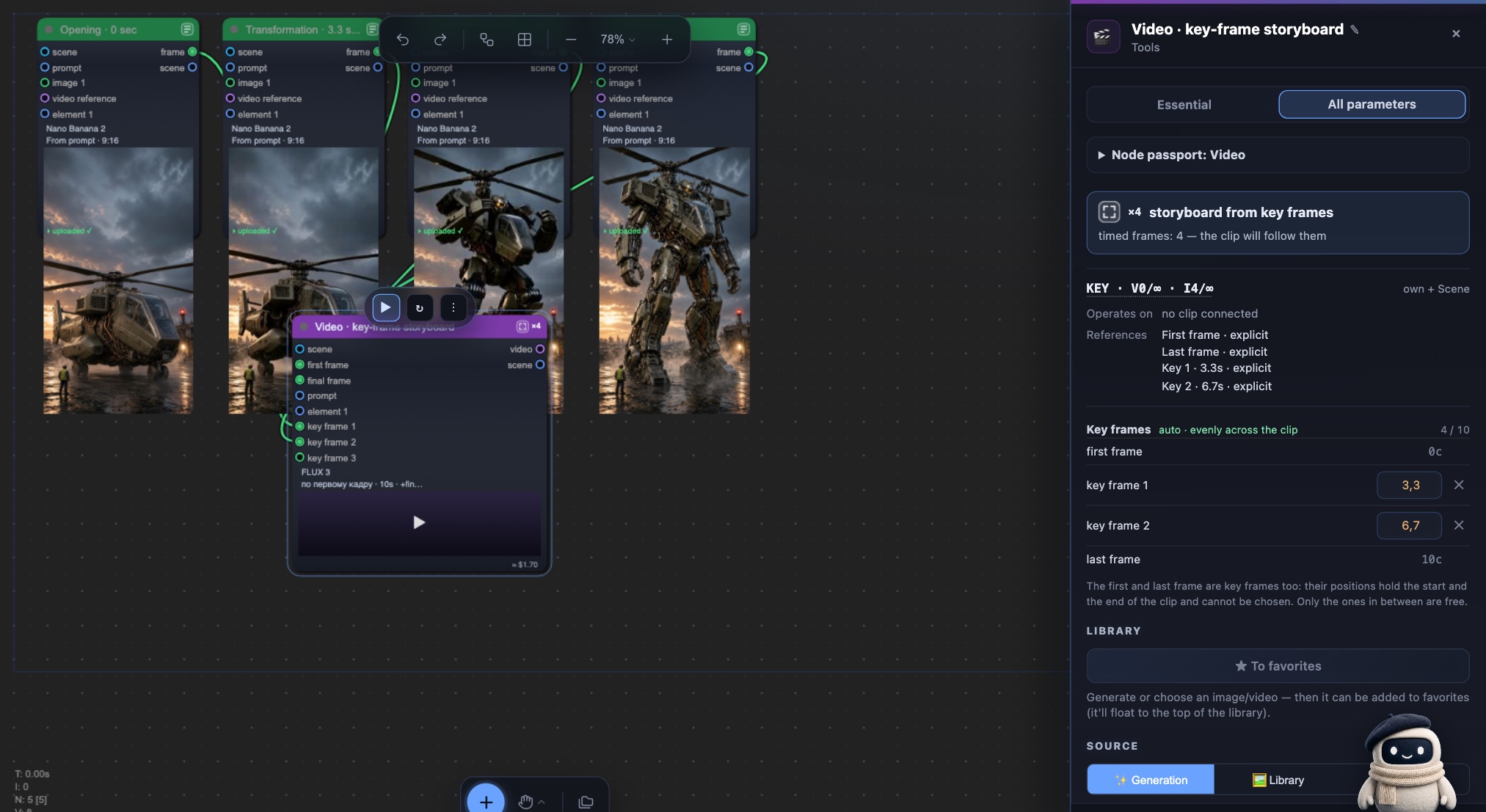
Connect opening, intermediate, and final images to FLUX 3 and the studio builds one timed storyboard. Auto spacing divides the clip evenly, while every intermediate second remains editable; one request carries up to ten frames.
 Open full-size screenshot ↗Read the full case →Publishing
One video, four SEO packages for publishing
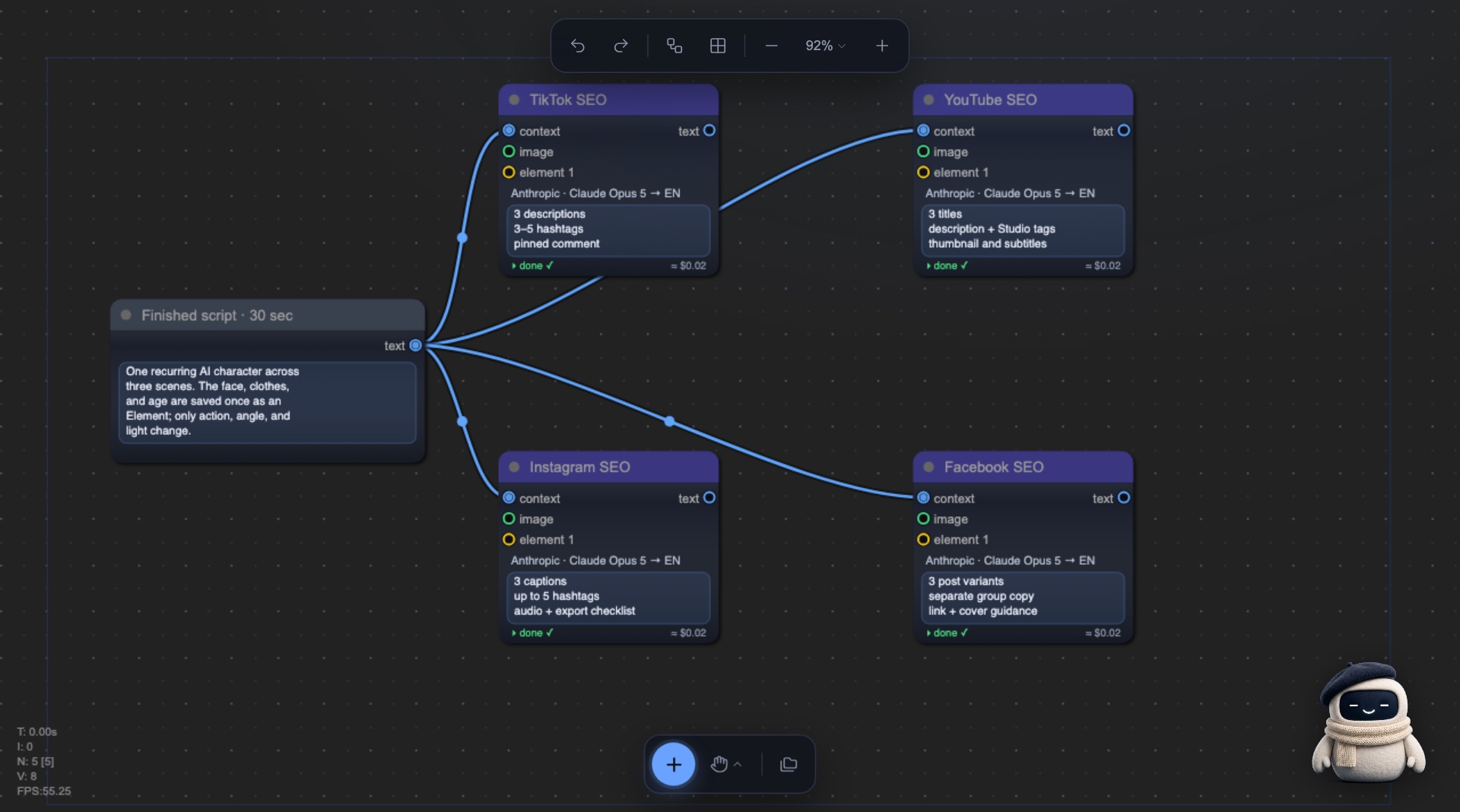
The library now includes separate built-in generators for TikTok, YouTube, Instagram, and Facebook. Connect a finished script to get platform-native titles, captions, keywords, tags, comments, cover guidance, and checklists. Choose the output language directly on the node.
 Open full-size screenshot ↗Read the full case →Projects
Workspaces: organization without walls around the library
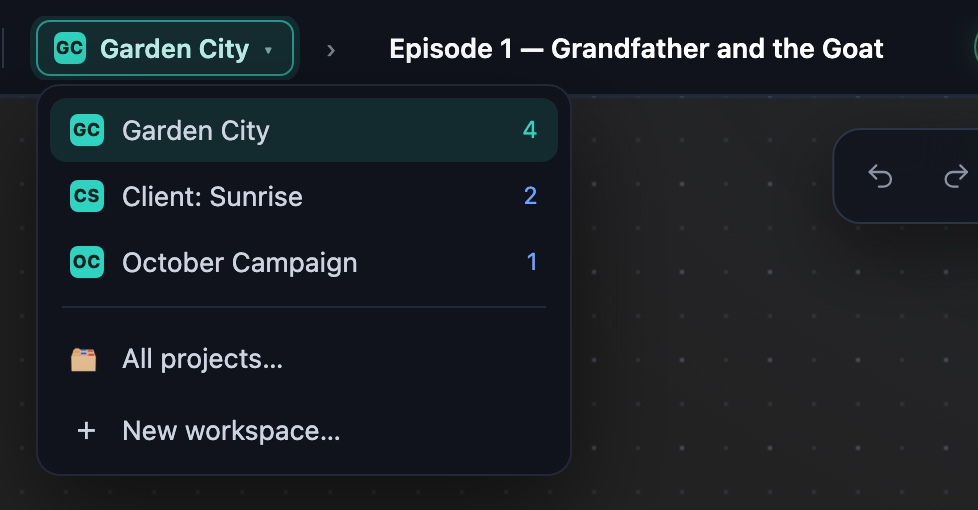
Give each series, client, or campaign its own workspace. The studio remembers the last project in each one, while characters, prompts, styles, voices, and generators stay in one shared library.
 Open full-size screenshot ↗Read the full case →Elements
An Element can describe itself from an image
Connect an image and press “Recognize from image.” In one look, the model fills both “what to take” for the image generator and the description for the Scriptwriter. Both texts stay visible and editable.
TextThe Text node answers in the language you need
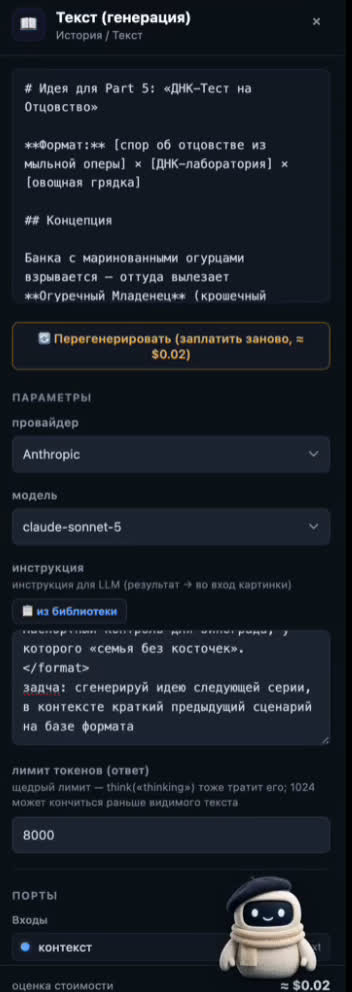
Choose Russian, English, or any custom language right in the node. The selected language stays visible on the card, while “same as input” leaves the request untouched.
OutputA finished result: download it or send a link
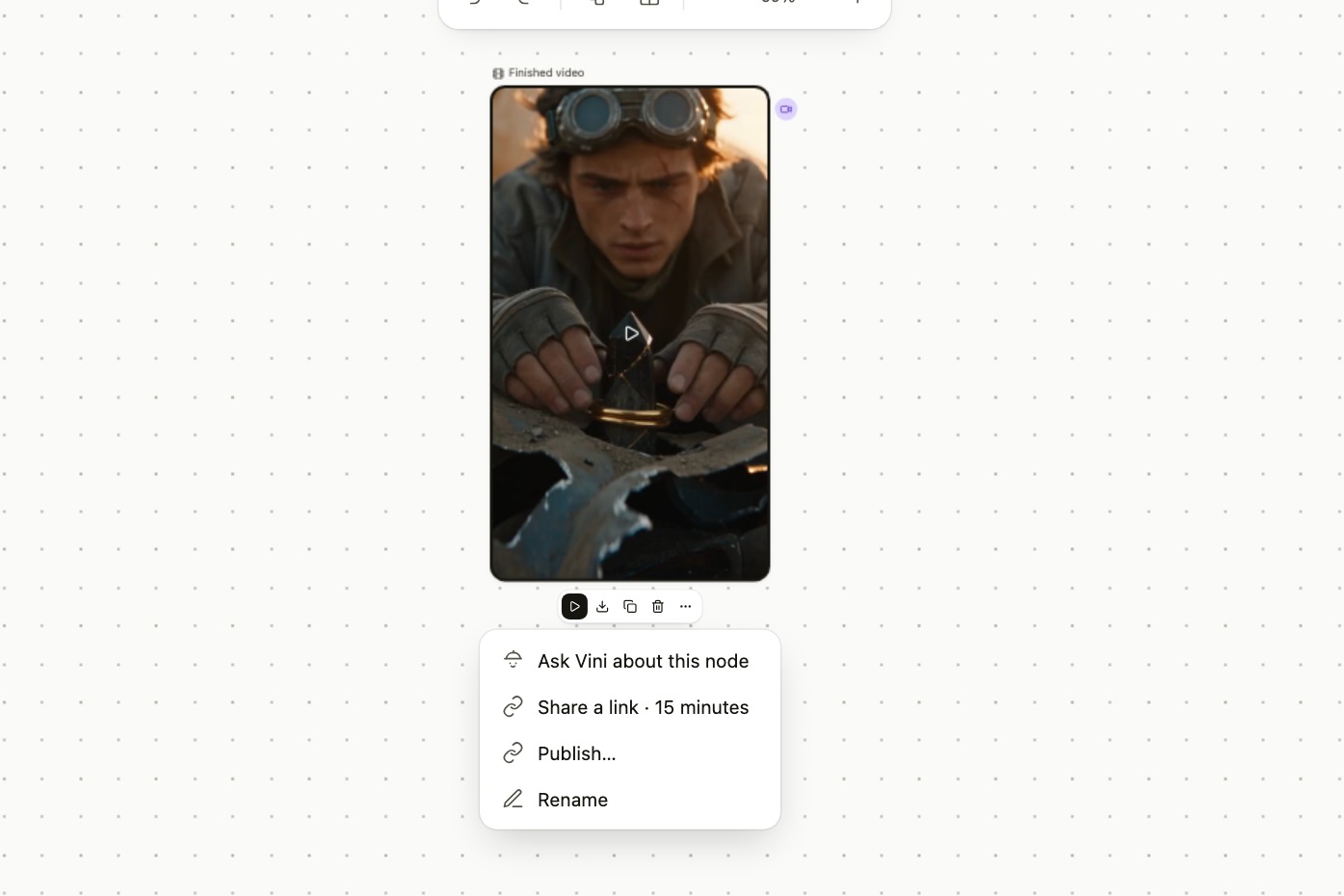
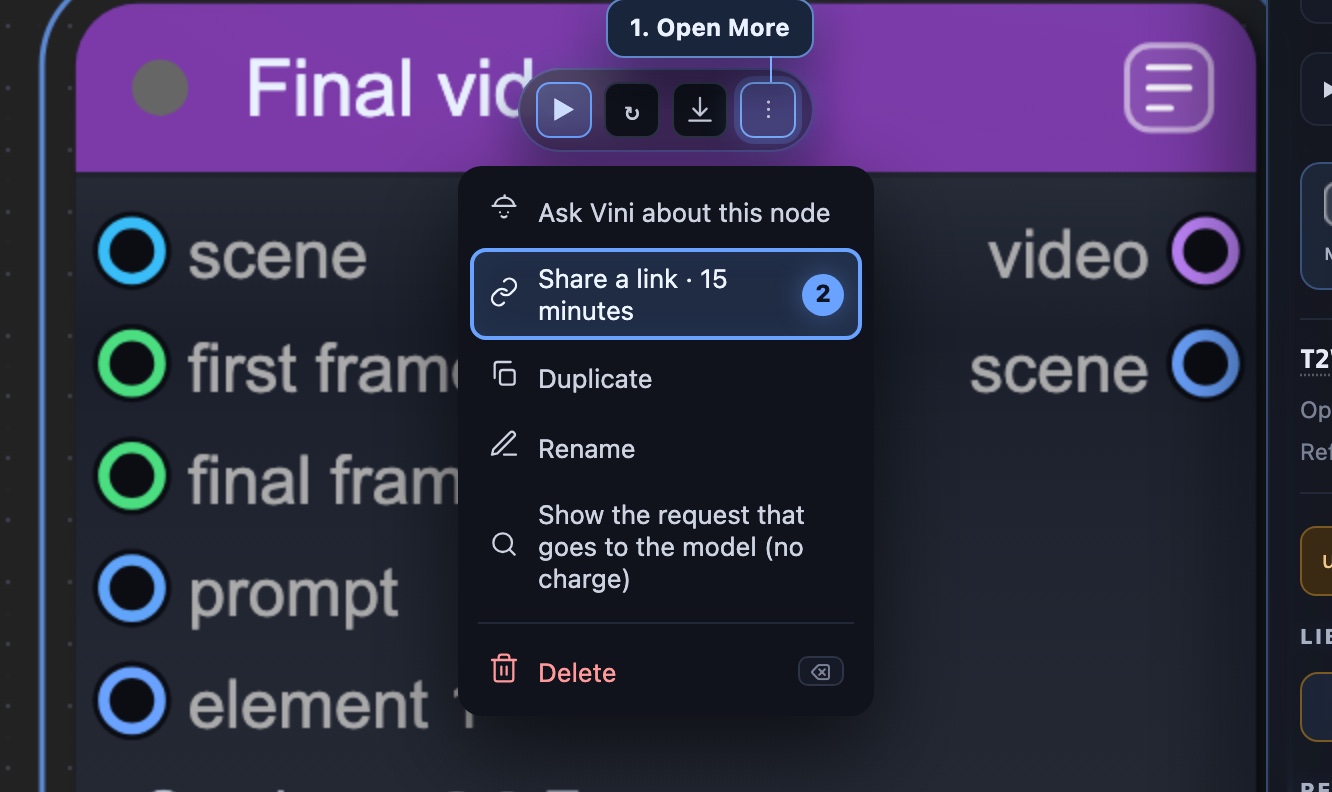
Select a node with a finished file: the down arrow downloads immediately, while ⋮ → “Share a link · 15 minutes” copies a temporary address. Without signing in, the recipient gets a player or preview, a readable filename, and a real Download button.
 Open full-size screenshot ↗Read the full case →Canvas
Sorting: from chaos to order
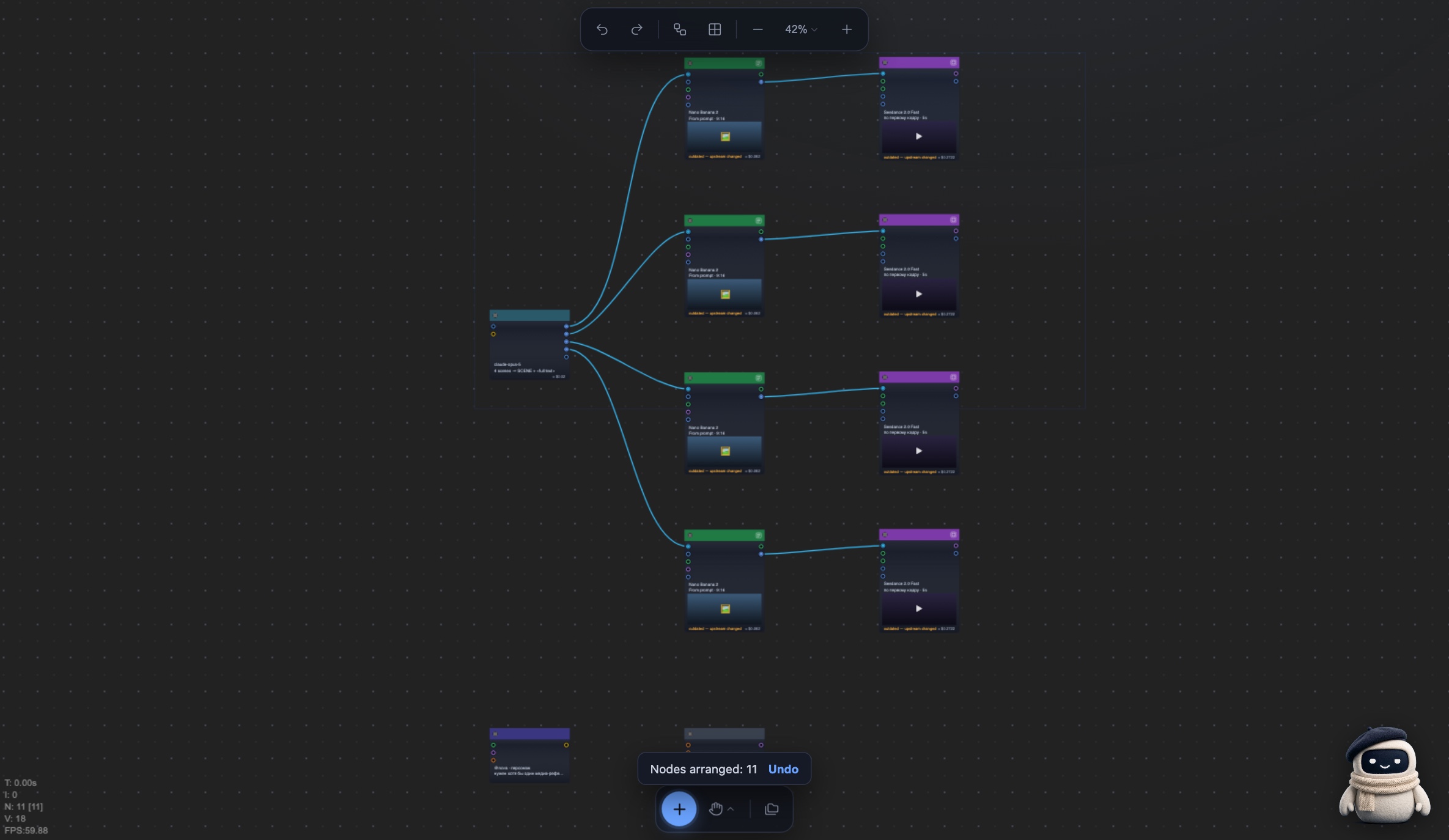
The Layout button has two modes: “Tidy up” preserves your manual order, while “Rebuild layout” reads ports and connections. Every scene becomes its own row, shared resources move below, and the whole change can be undone.
 Open full-size screenshot ↗Read the full case →
August 2026
RecipesShare a project as a recipe, not a copy
Publish your original request to Vini as a link with its own cover. The recipient sees the card, enters the studio, and chooses when to build a similar project — nothing starts without their click.
ScriptThe Scene Director turns a script into a shooting plan
After the Scriptwriter, open the scene list, edit shots, duration, and the image strategy, then unfold the plan into ordinary nodes. Rewrite or rebuild one scene without touching its neighbors.
VideoFirst and last frame: the ending as a contract, not a wish
Wire an opening and a closing frame and the model has to bring the scene to the ending you specified. Eight of eleven models accept that input; the case runs one transformation through nine models with real prices.
Read the full case →VideoThirty seconds in one run: Seedance 2.5 is live
Create a new clip from text, images, video, and audio — up to 30 seconds. The model can also edit and continue clips, while Vini checks the operation and input limits before a run.
Read the full case →ProductionFrom an idea to eight scenes — the complete real project
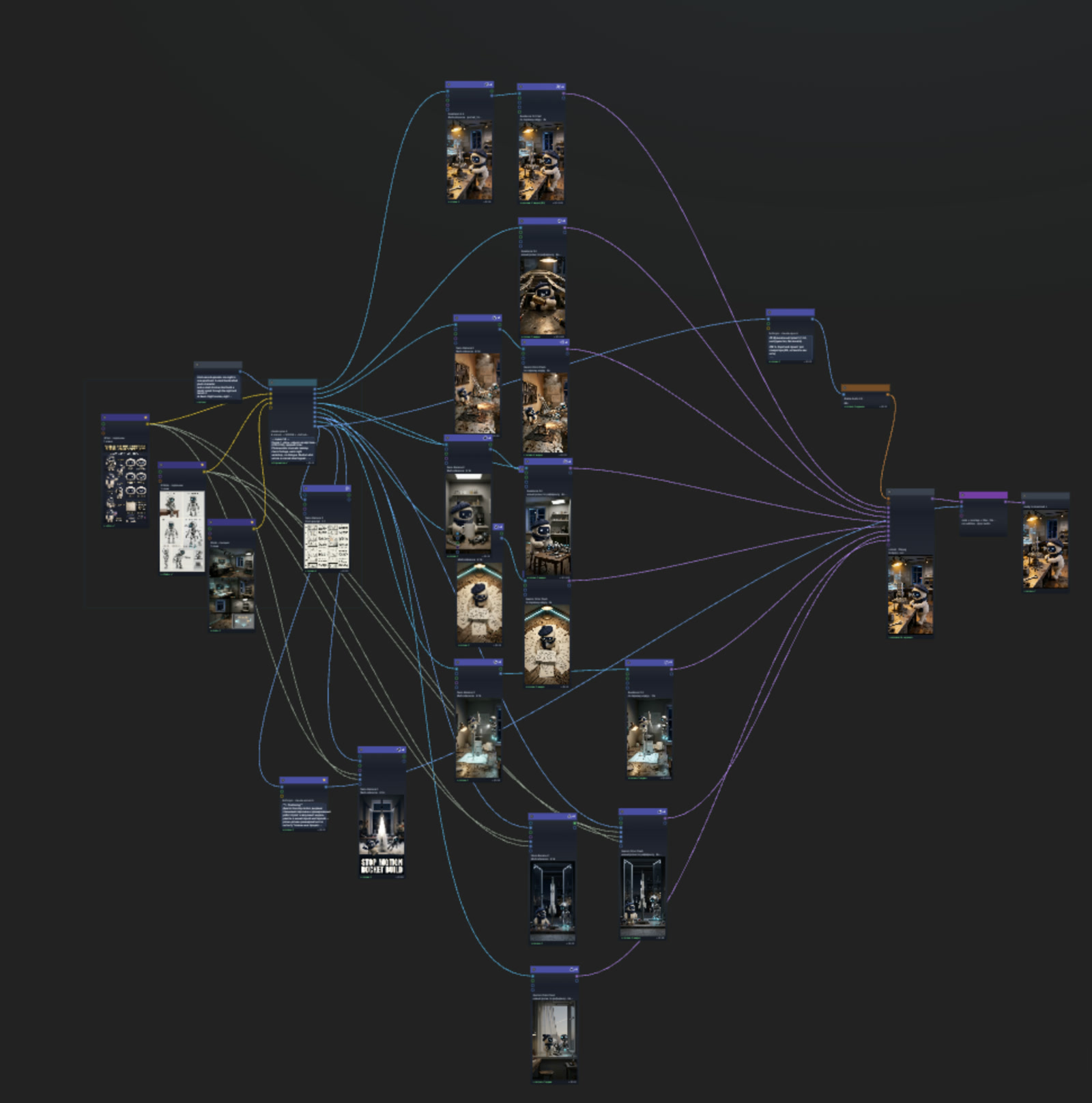
We break down Vini Episode #4: Elements, script, Storyboard Sheet, individual shot generation, music, assembly, and hands-on decoration. The case includes the real production graph and the mistakes a person had to fix.
 Open full-size screenshot ↗Read the full case →Audio
Voice is now part of the graph
Pick a ready voice or clone one from audio or video, save it to the library, then connect it to Voiceover and Montage. Separate nodes handle isolation, dubbing, and lip sync.
MontageVideo and sound on one editing timeline
In Clip trim, clips and sound fragments are placed by hand in time; each clip can keep, lower, or mute its native audio. One Remotion composition powers both preview and the final file.
Read the full case →ToolsCharacter Design Board and Storyboard Sheet — built-in Generators
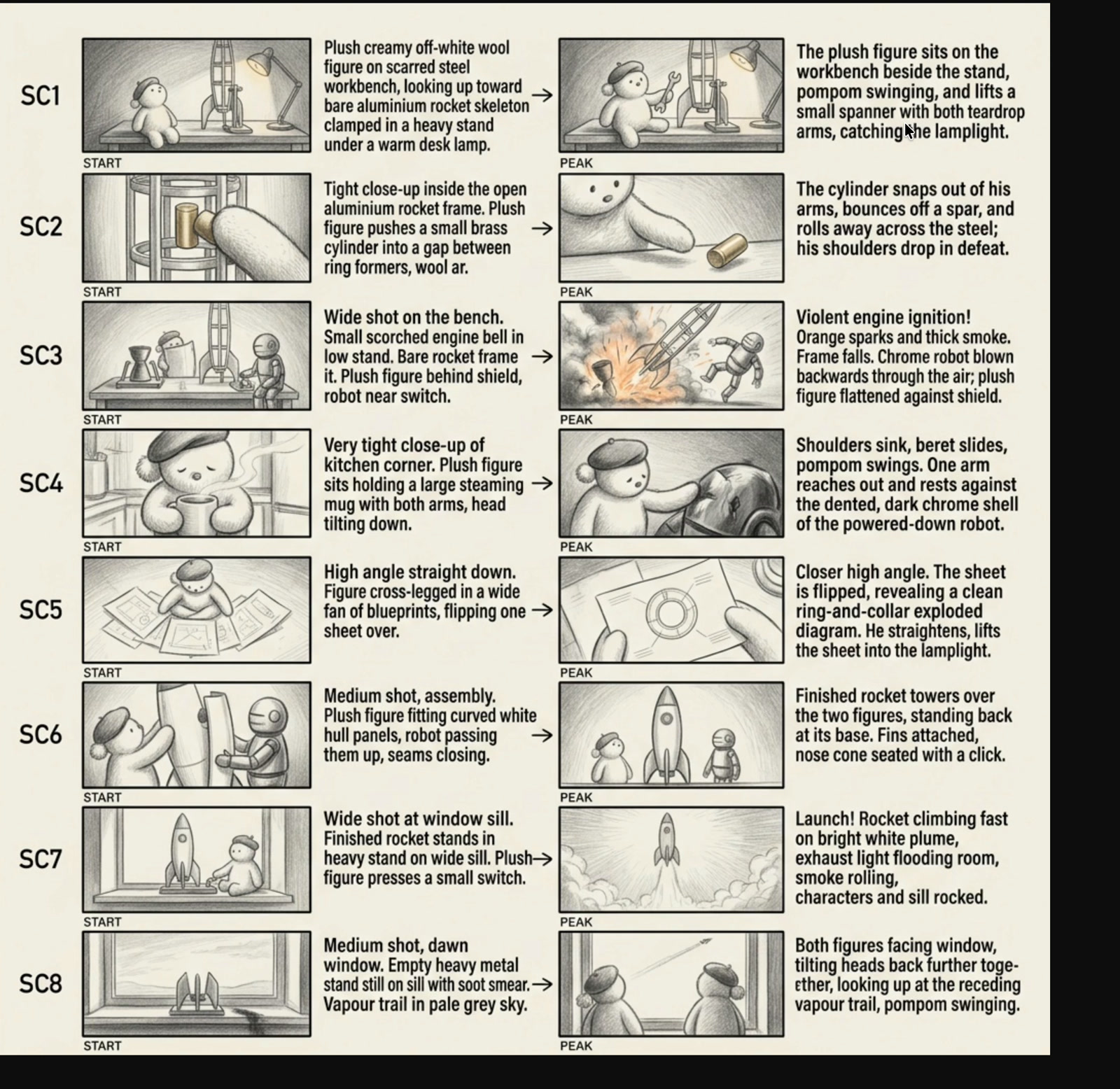
Add a ready-made generator from the library: one creates a character sheet and angles, the other maps a story into shots before rendering. Its instruction stays open and the result is a normal node you can tune.
 Open full-size screenshot ↗Read the full case →Studio
Vini Studio now speaks English
The English version covers the portal, nodes, panels, hints, and server messages. Switch language without changing the saved graph; public pages now default to English, with Russian under /ru.
AccessSign in with Google — keep the same account
Sign in with Google or Telegram and link both methods in your profile. Projects stay under one account, and an identity conflict is blocked until the owner signs in.
Getting startedYour first project is already assembled
A new account receives one starter graph and the system Vini Element. Open a working example immediately, study the connections, and rebuild it around your idea.
July 2026
EditingDecoration and Montage studios — edit by hand, $0
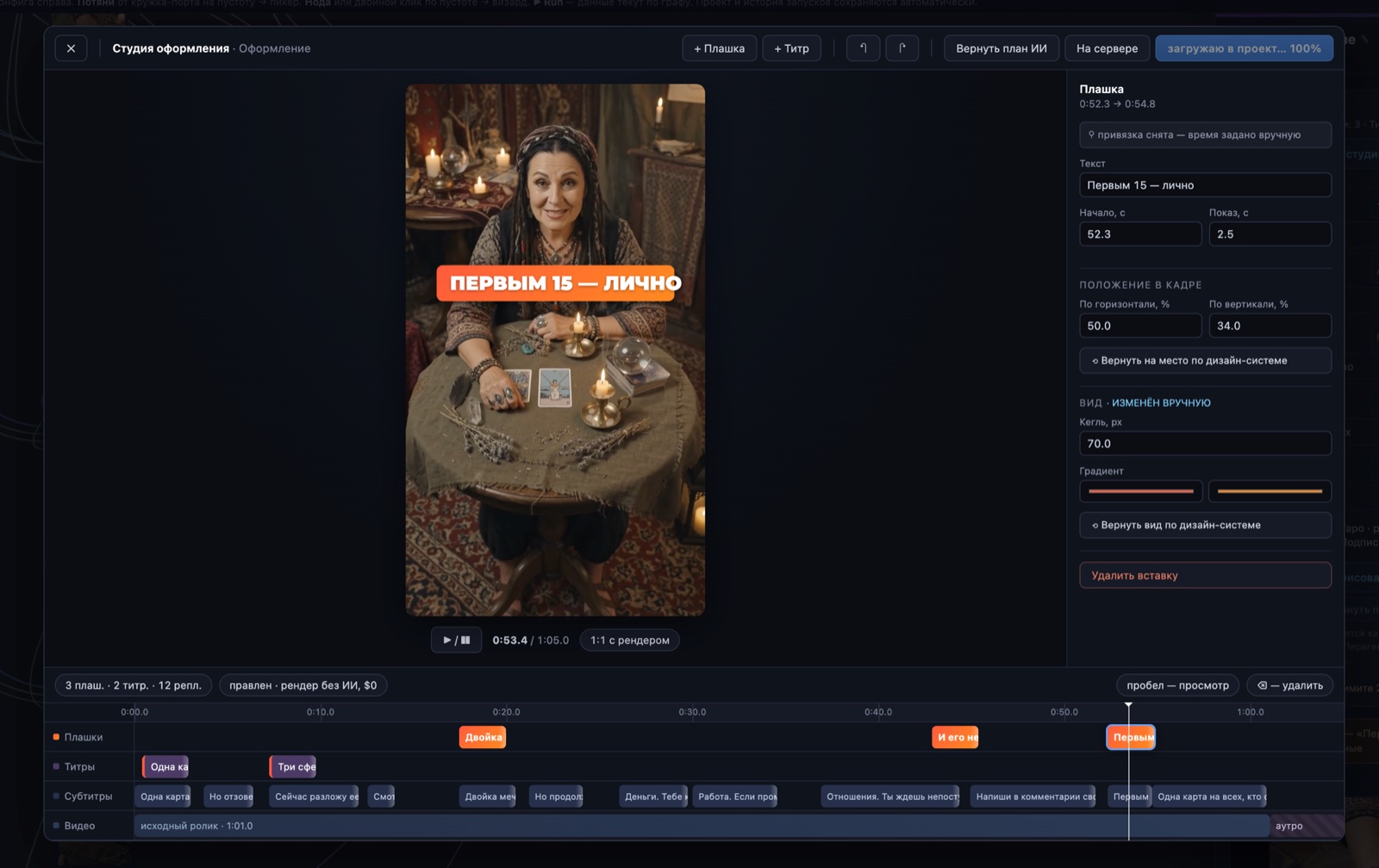
Edit the AI plan on top of the result: overlays/titles/subtitles on a timeline in Decoration, plus trimming, speed, and cropping in Clip trim. Rebuilding is a render without AI and without another paid generation.
 Open full-size screenshot ↗Read the full case →Studio
Skills: studio craft in the library
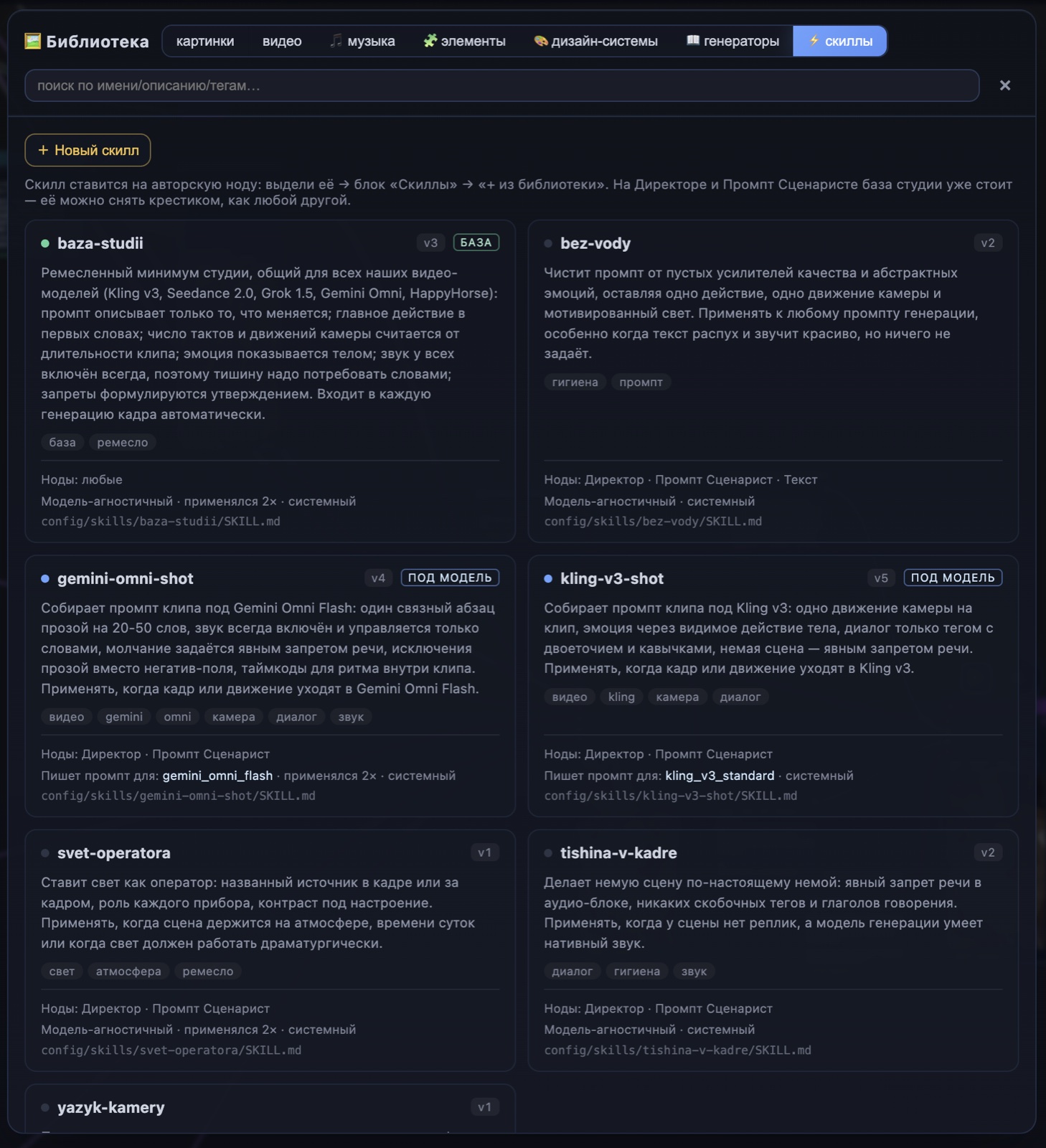
Operator lighting, camera language, silence in the shot, “no filler,” and model-specific syntax become named techniques. The foundation lands on the Director automatically; add the rest with one chip. A technique is context, not an order.
 Open full-size screenshot ↗Read the full case →Directing
The Director frames the shot for you
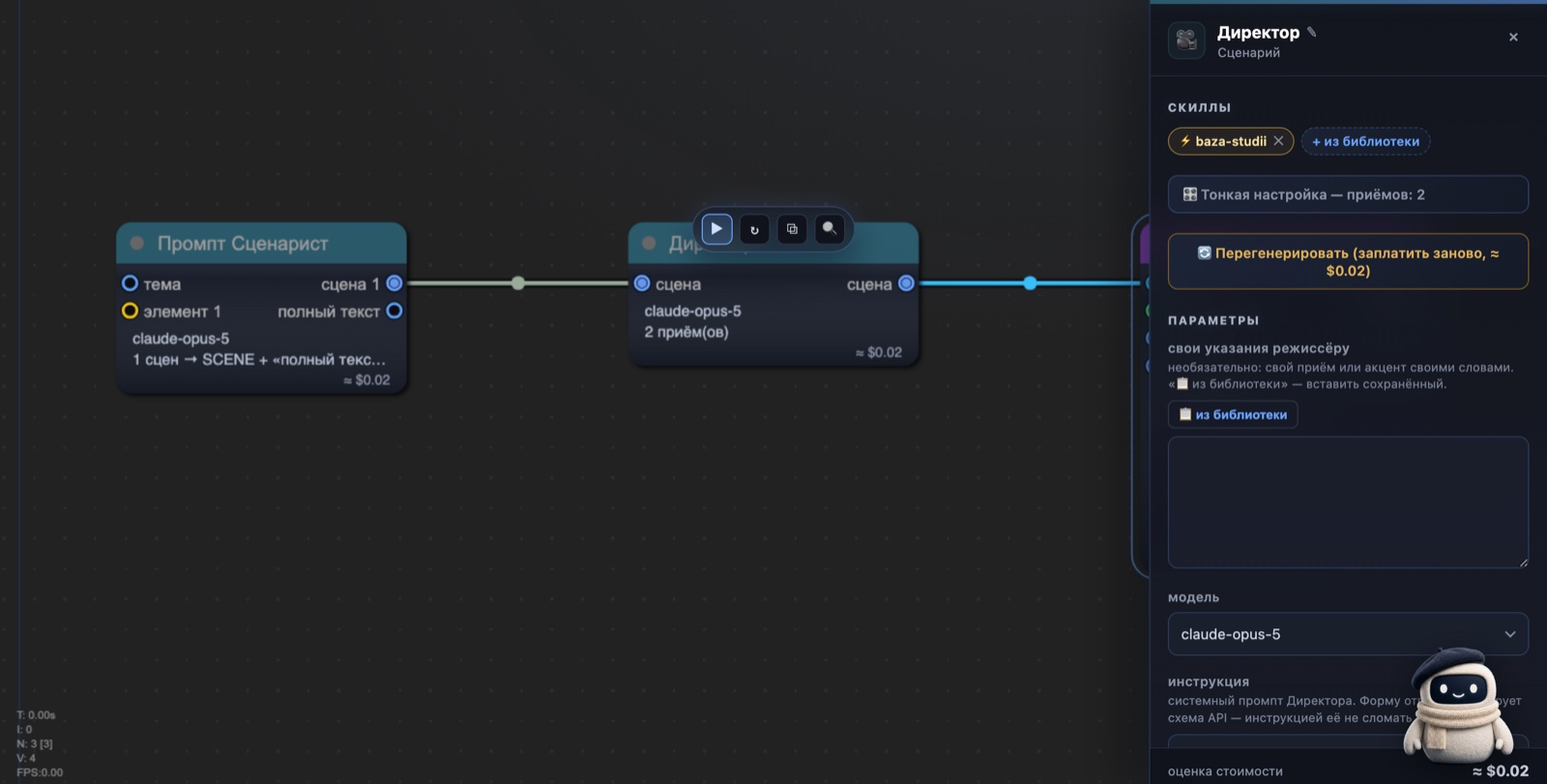
The Director node is the directing layer: it chooses angle, camera movement, and scene pace. It handles the shot by default; guide it with camera, pacing, or effect techniques when needed.
 Open full-size screenshot ↗Read the full case →Studio
Build your own tool — reuse it in every project
Save an entire text-generator node to the library, including its name, model, and instruction, then reuse it like an Element for tools. Any node can also be renamed.
ProjectsAn agent builds the starting graph from your idea
A new project no longer has to begin with an empty canvas. Describe the idea and the bootstrap agent assembles a starting node graph; edit it however you like from there.
CharactersThe Elements library
Save a character once with ★ and bring it into any project with its appearance already baked in, without rewiring. One character can carry an entire series.
Read the full case →EconomicsPay for the change, not the whole video again
Every step is its own node: change one scene and pay for one scene, while unchanged results come from cache for $0. The estimate for the full run is visible in the toolbar before you press Run.
Read the full case →EditingDecoration: subtitles and punchy overlays
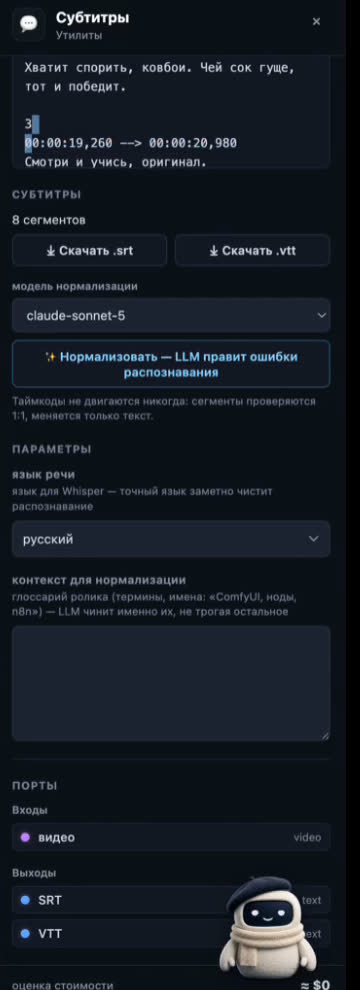
Hard subtitles live inside the studio: Subtitles exports SRT/VTT, Normalize fixes recognition with an LLM, and chapter titles, punchy overlays, and a Reels design system sit on top.
 Open full-size screenshot ↗Studio
Vini, the studio companion
A living assistant reacts to generation: it greets you, works alongside you, and celebrates the finished result.
AccessClosed beta — looking for partners and testers
The project is in closed beta. I am looking for creators and partners ready to try it and share feedback. Sign-in is open — with Telegram or Google, and no account is needed in advance. Interested? Get in touch.
ProjectsStart a new project from a finished plot
Liked the plot? Create a new project from it and reuse the plot and its settings instead of starting from scratch.
 Vini Studio