 Vini Studio
With GEM Profile, I wanted to keep the idea of the image: a character, a giant profile screen, crystals, and gloss. But I wanted to explore different colors, clothes, and poses. Those options now live inside the prompt. Open a list, add your ideas, and give the next image more possibilities.
Random prompt variants: one GEM Profile, different images
Vary colors, poses, camera angles, and lighting within one prompt. Here is how to build option lists in Vini Studio and try them with the GEM Profile recipe.
Random words and phrases, exactly where you need them
Replace a single color with a list. Before generation, Vini picks one option and substitutes plain text. You can do the same with a material, time of day, facial expression, or an entire lighting description. The rest of the prompt stays common to your series.
A short learning example
Portrait in %rand(ruby, emerald, sapphire)% light, %rand(close-up, waist-up)%.One possible text sent to the model
Portrait in emerald light, close-up.This illustrates the syntax; it is neither the full GEM Profile prompt nor a record of a particular generation.
Each list is picked independently. The studio handles the formula, so the image model receives a specific description. You decide which changes belong in the series and which details should remain fixed.
Read the prompt, open the options with a click
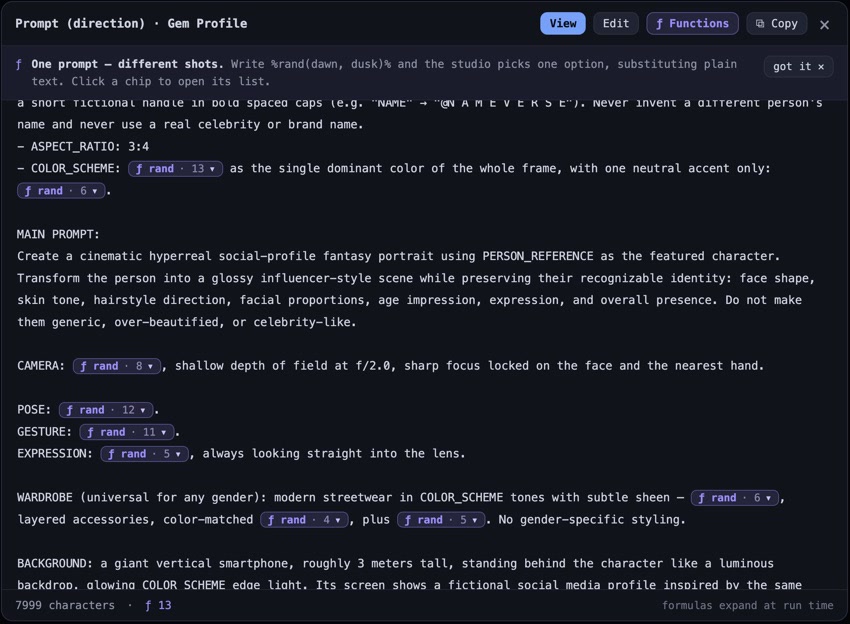
In an Image node, press “✎ Editor” below “Prompt (direction).” In View mode, a long formula becomes a compact chip. “ƒ rand · 13” means the list contains thirteen options. It is the list size, not the number of the chosen color.
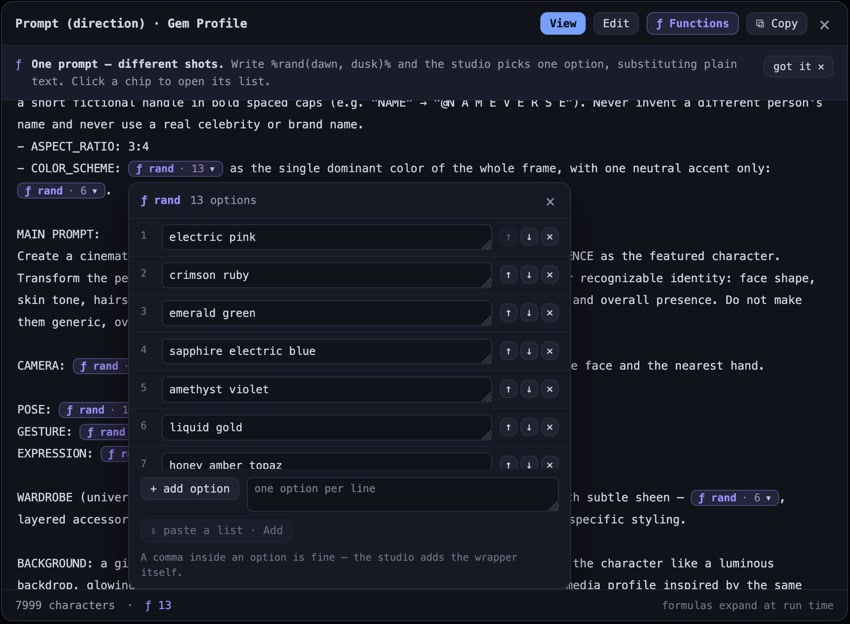
Click a chip to edit the lines, reorder them, remove options, or add your own. For a longer set, paste a list with one option per line. Clicking a row lets you edit its text; it does not select that option for the next generation.
Edit mode shows the original text and formulas. “ƒ Functions” opens a panel where you can build a new rand list and insert it into the prompt. Changes are saved immediately, without a separate Save button. Opening the editor, browsing lists, and editing text do not start a generation.
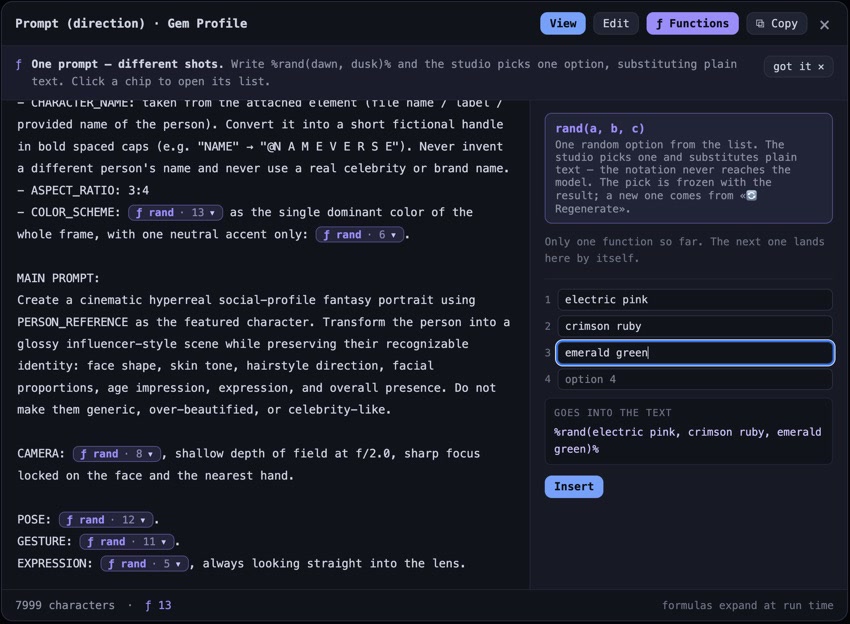
When typing a formula manually, put a phrase containing a comma in quotes:
%rand("soft light, warm shadows", neon)%. When you edit through the list, the editor adds the necessary wrapper for you, keeping the phrase as one option.GEM Profile: a recognizable idea with different looks
Here are three results from the same recipe with Rave. The character and poster concept stay recognizable while the styling and composition vary. These images were made in GPT Image 2.5 at Balanced quality, in 3:4, using one character sheet. The original sheet was made in Grok Imagine Image 2.


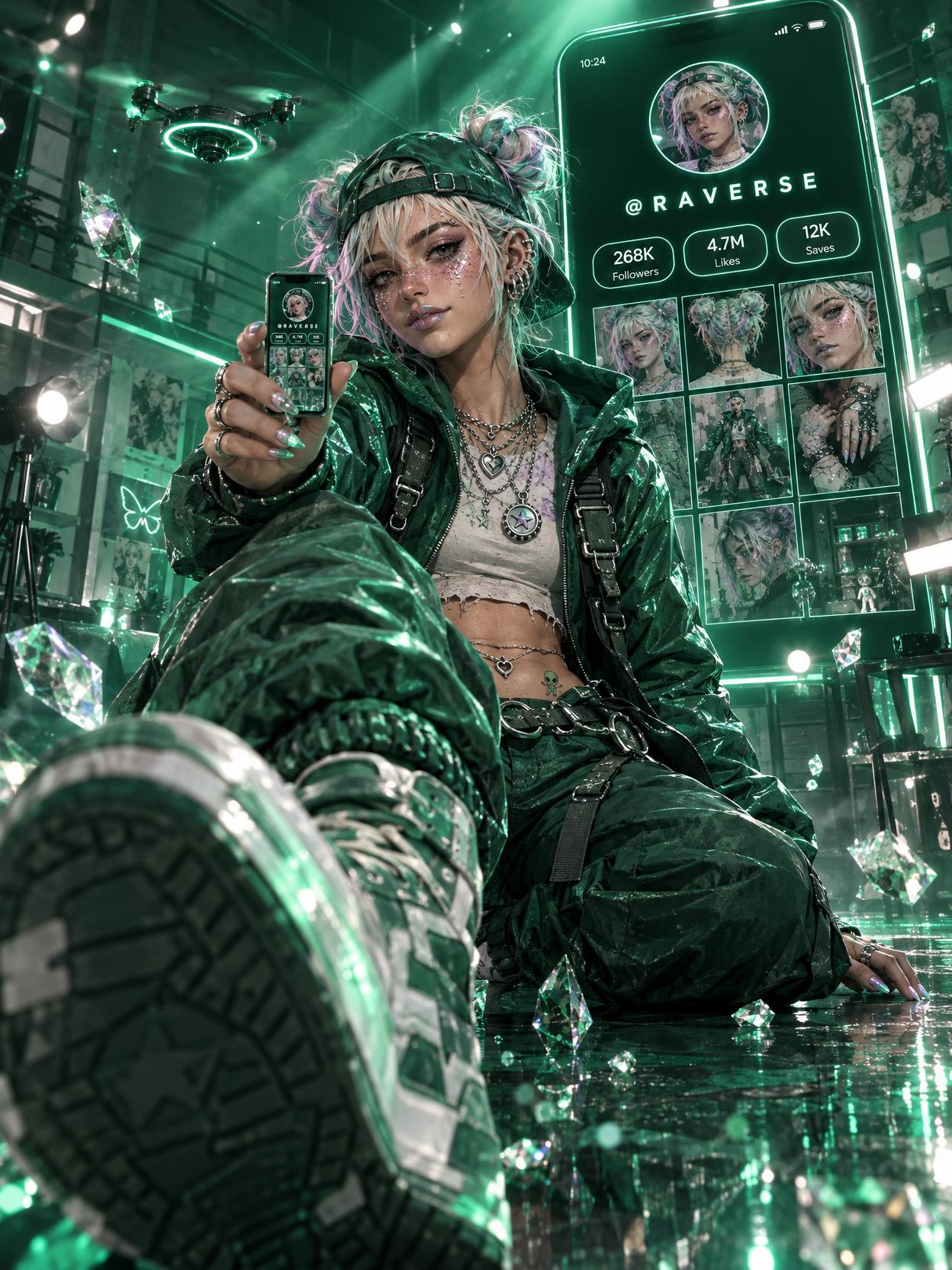
Results from the author’s project. These show a series, not a comparison with only one parameter changed. The profiles and counters inside the images are fictional.
Keep fixed
The character reference, identity instructions, giant screen concept, format, and overall feel of the image.
Turn into lists
Suitable palettes, poses, camera angles, gestures, outfits, and lighting. Every option should fit the same idea.
Start with two or three lists that visibly affect the image. If the character needs a particular outfit, keep it in plain text. To keep a favorite pose, replace its formula with that specific description in Edit mode. Random choices work best where you would be happy with any option in the list.
For references, quality settings, and more results, see our GPT Image 2.5 and GEM Profile guide.
Try GEM Profile with your own character
- Open GEM Profile. Follow the recipe link to Vini Studio. Sign in if needed.
- Choose your character. Choose your own character Element and build the project from the recipe.
- Open the prompt editor. In the Image node, find “Prompt (direction)” and press “✎ Editor.”
- Customize the options. Open a purple rand chip. Edit the rows, add your ideas, or paste a list with one option per line.
- Generate the image. Run the Image node. To pick options again for a finished result, press “Regenerate” on that node.
The choices stay with the result. A normal run uses an up-to-date cached result. “Regenerate” picks options again on that node; some choices may repeat. This does not regenerate its parent nodes.
A few useful details
Will every image be unique?
Lists offer more combinations but do not prevent repeats. A new pick can match the previous one, and similar descriptions can produce similar images. For visible variety, add meaningfully different options that all fit the concept.
Can I keep just one option?
Yes. A list may contain one option; the last option cannot be deleted. If you no longer need a random choice, replace the whole formula with plain text in Edit mode.
What does it cost to try?
Viewing and editing a prompt does not create an image. Generation and regeneration are charged according to the model, quality, and references you use. Check the price on the node before running it.
What will your GEM Profile look like?
Add your character, keep the options you like, and try your first image.
Open the GEM Profile recipe →Sign in to Vini