 Vini Studio
The video is finished. Usually, the next step is downloading the file, finding it on your computer, and uploading it again. In Vini Studio, you can send the finished video straight from your project: choose your account, review the text and settings, then confirm.
Connect your accounts
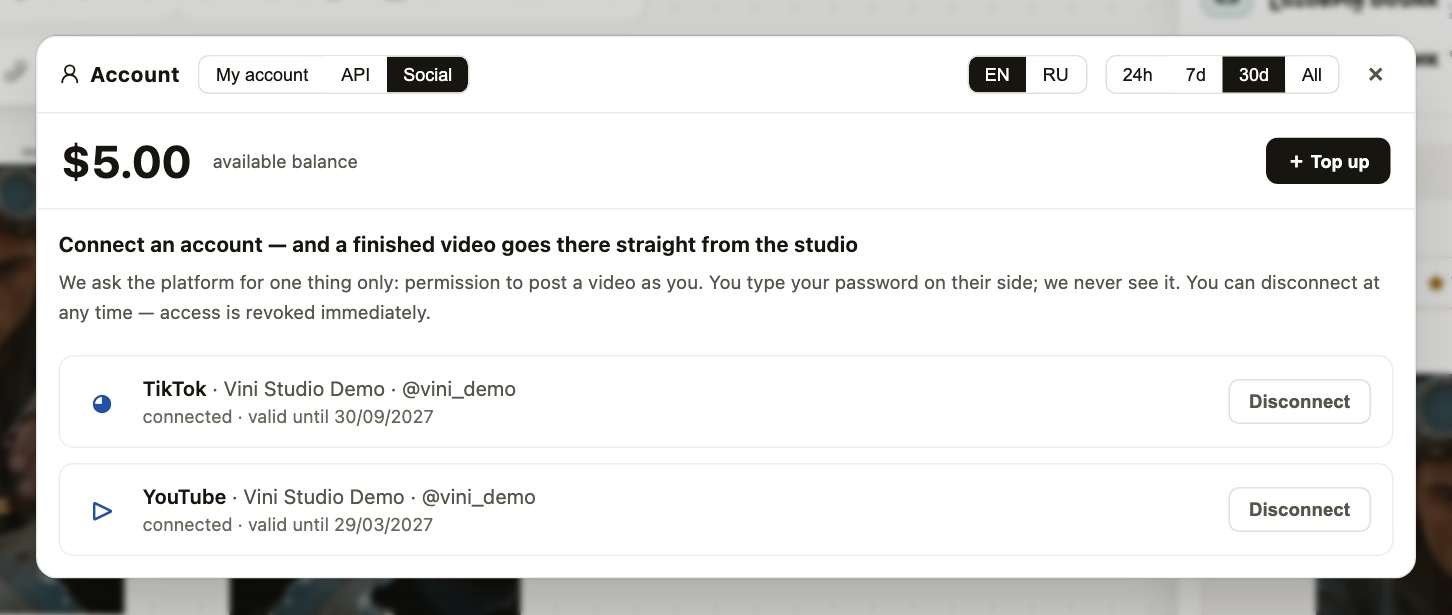
Open Account → Social and press Connect next to TikTok or YouTube. You grant access on the platform’s own page. Back in the studio, the connected account appears in this tab, where you can also disconnect it.
Start from the finished video
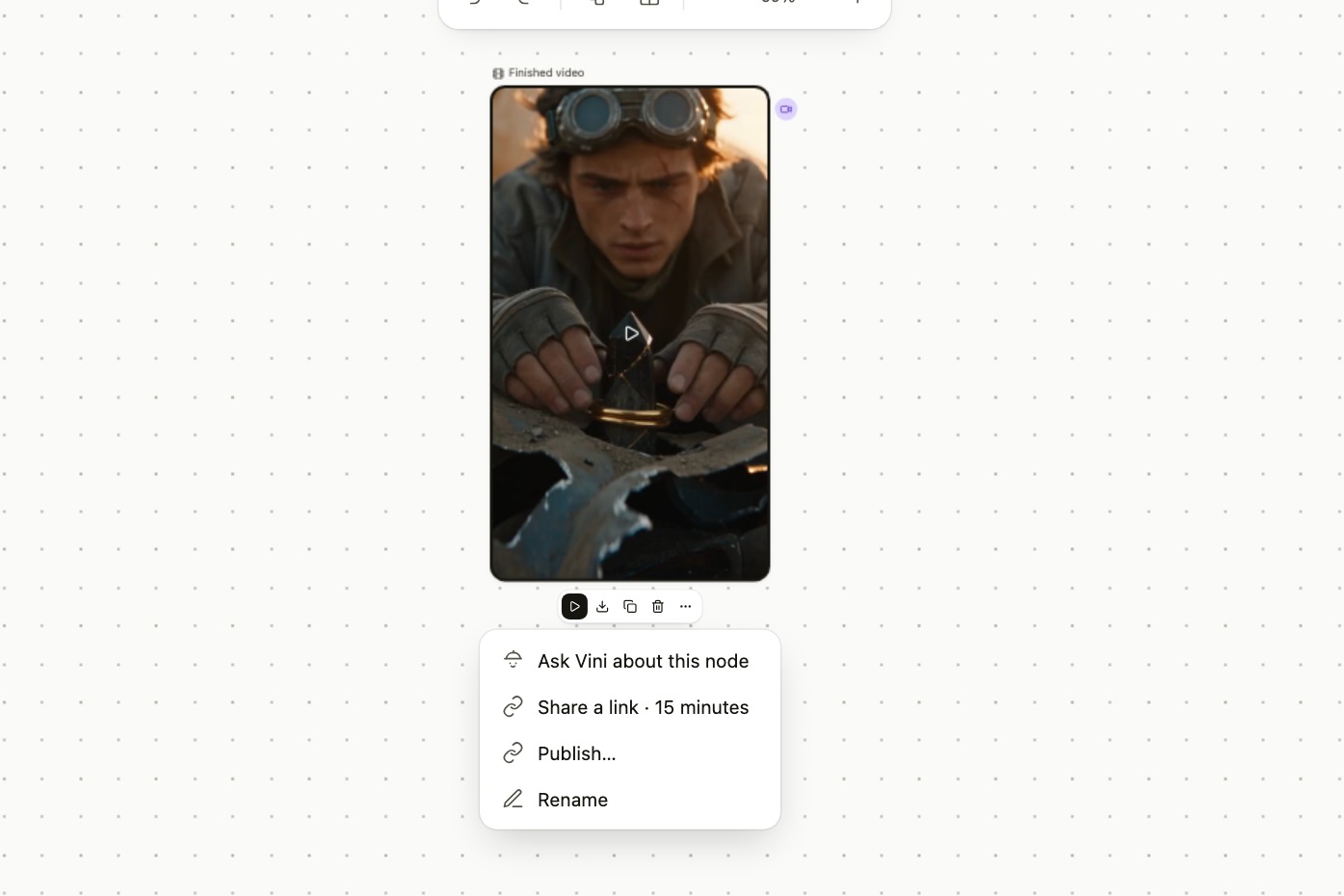
Select a card with a finished video, open its ⋮ menu, and press “Publish…”. If both platforms are connected, the studio asks which one to use. You can review the video and destination account before sending.
An agent can prepare the post in advance
A connected agent can prepare a caption with hashtags, choose the account and select an applicable cover frame. Its link opens the project with the publication window already filled. Check the video and every field, choose visibility and confirm submission yourself: saving a draft does not publish it.
How to open and review a prepared post →
1. Send an episode to both platforms
One finished file can need two different captions and settings. Send a short episode to TikTok first, then upload it separately to YouTube from the same video card.
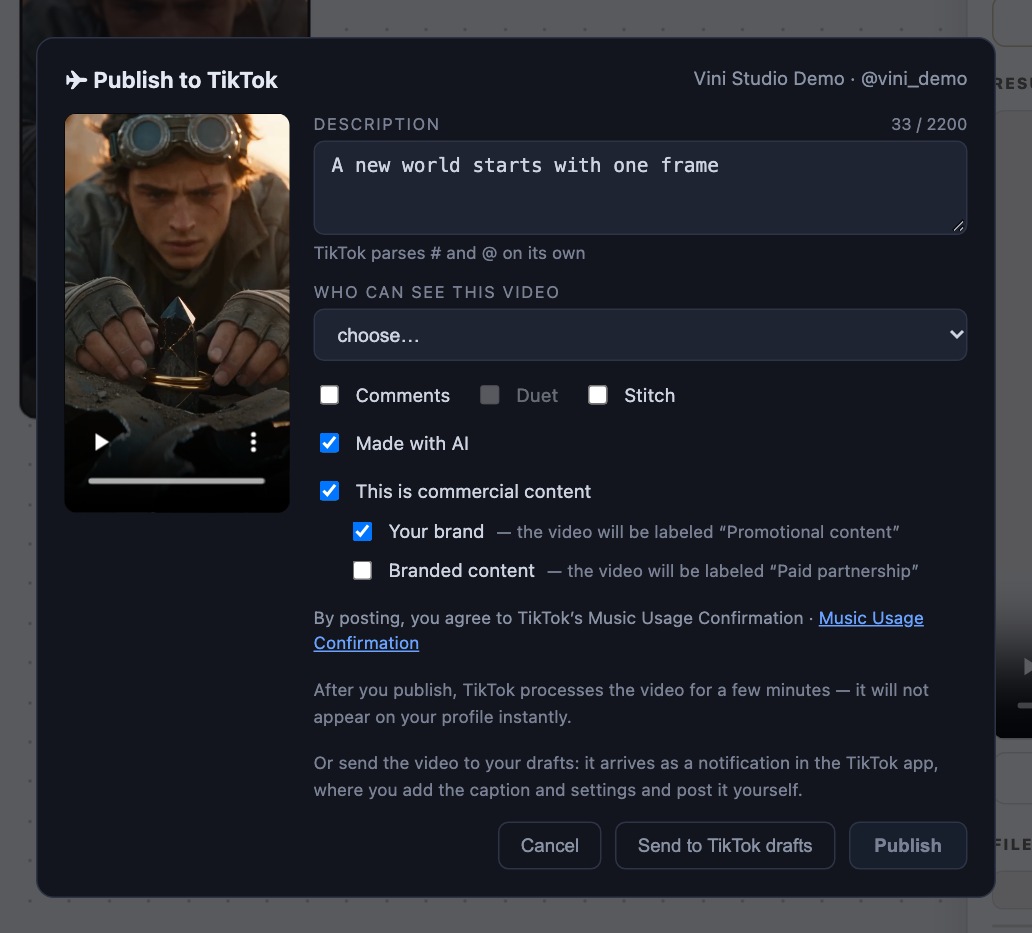
- Prepare the TikTok post. Choose TikTok, check the account, enter a caption, and choose who can see the video. Set comments, Duet, and Stitch from the options available for your account, then review the AI label and commercial-content settings.
- Confirm publication. Press Publish. TikTok still needs to process the video, so it may not appear on your profile immediately. If TikTok currently limits direct publishing for your account, the form tells you before sending — then use “Send to TikTok drafts” and choose who can see the video in the app.
- Send the same episode to YouTube. Open ⋮ → “Publish…” again and choose YouTube. Set the title, description, preferred visibility, and audience, review the AI label, then confirm. Check the actual visibility on YouTube after upload.
The finished file stays in your project, and each platform receives its own settings. You do not need an intermediate download for the second upload.
2. Finish the post in the TikTok app
If you prefer making the final changes on your phone, press “Send to TikTok drafts” in the TikTok form. The video arrives as a notification in the app. Open it, finish the caption and settings, then publish the post in TikTok.
If the button asks you to reconnect, do so in Account: an older connection may not have permission to send drafts.
3. Upload a video to your YouTube channel
Check the channel, title, and description. Choose the visibility you want to request: Public, Unlisted, or Private. The studio sends that request to YouTube. Once processing finishes, use “Open on YouTube” to check the video and its actual visibility.
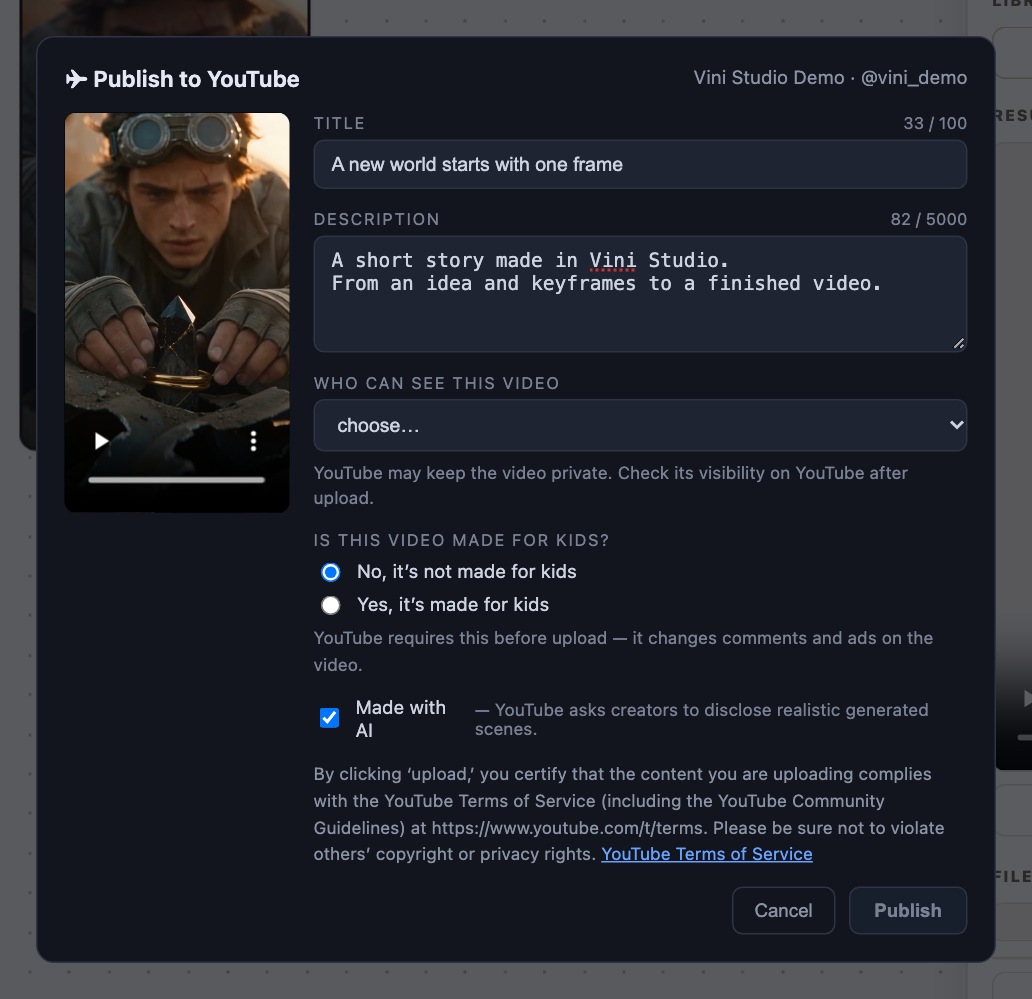
YouTube may restrict the video to private viewing regardless of your selection. “Uploaded to YouTube” confirms the upload; it does not mean other viewers can access the video. You can check the actual settings in YouTube Studio.
Prepare the copy alongside the video
Connect TikTok SEO and YouTube SEO to the finished script for platform-specific metadata ideas. Choose and review the result, then copy it into the publishing form. How the SEO generators work →
The project keeps the work behind your video together. Choose the final step that fits: publish or finish a draft in TikTok, or upload to your YouTube channel and check the result there.
Create videos in Vini Studio
Ideas, characters, scenes, sound and editing in one project. Work independently or discuss content production with our team.
Get started in the studio →Sign in with Telegram or Google. No account needed in advance — it is created for you.