 Vini Studio
VINI STUDIO / PLATFORM
A workspace for AI video production.
From the first reference to the finished edit. Prompts, images, video and editing stay connected in one project, so you can revisit a stage and keep working.
The editor is easier to use on a computer. On your phone, this detail is shown at its original scale.
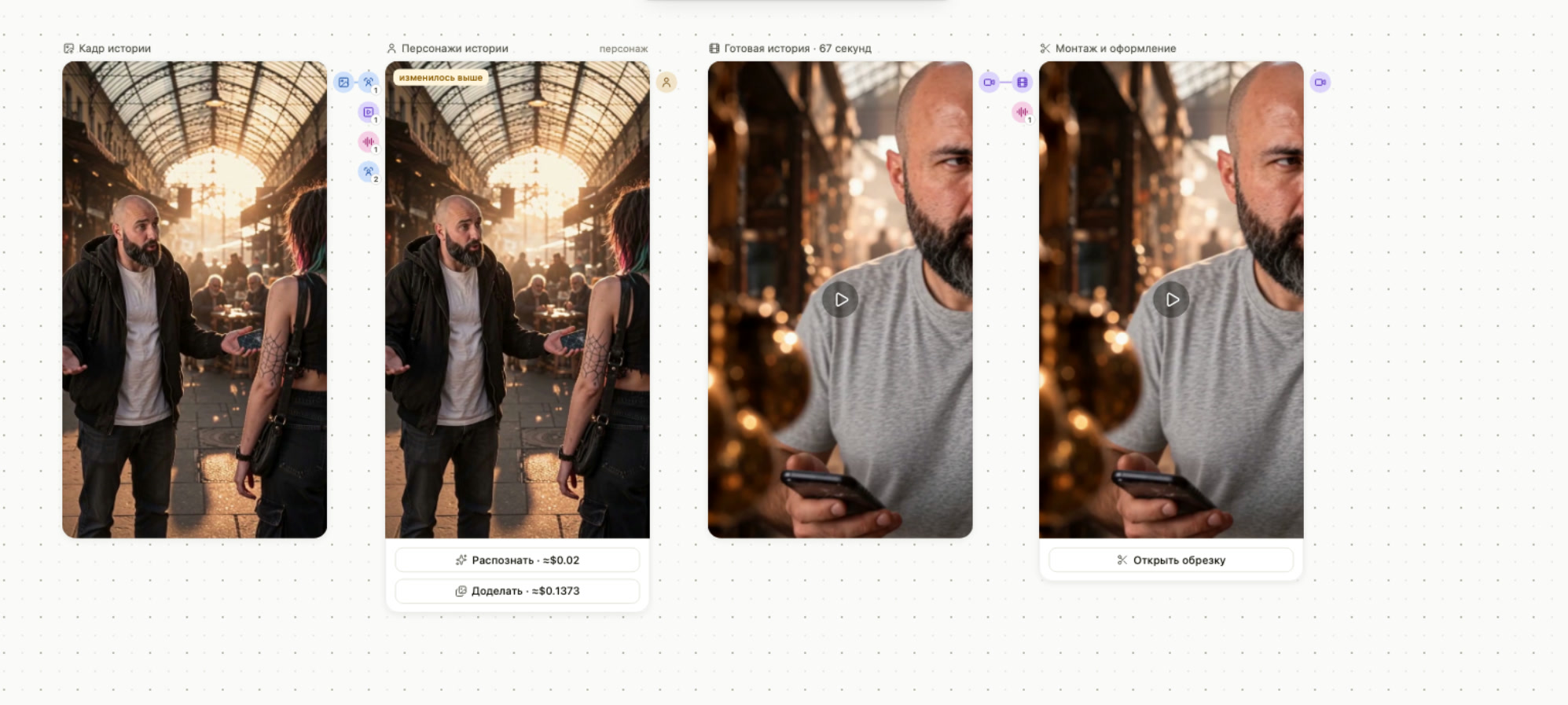
01 / YOUR WORKFLOW
See what makes the final result.
A project keeps sources and connections together. A new scene can use a character you have already prepared, and a revision can start at the stage that needs attention.
- 01
Idea and prompt
Write on a card or connect text from another part of the project. The sources remain visible.
- 02
References and design
Prepare an image, upload material or connect a saved Element.
- 03
Scenes and variations
Choose the task and a suitable model. Compare results and work on individual scenes.
- 04
Editing and presentation
Assemble the material, adjust text, timing and framing, then save the finished video.
02 / WORKING TOOLS
Keep what works. Build the next episode.
Your character has a life beyond one scene.
An Element combines the description and images of a character, object or location. Save it to the library and connect it to later scenes and projects. References help maintain an identity; the output still needs your review.
How visual consistency works ↗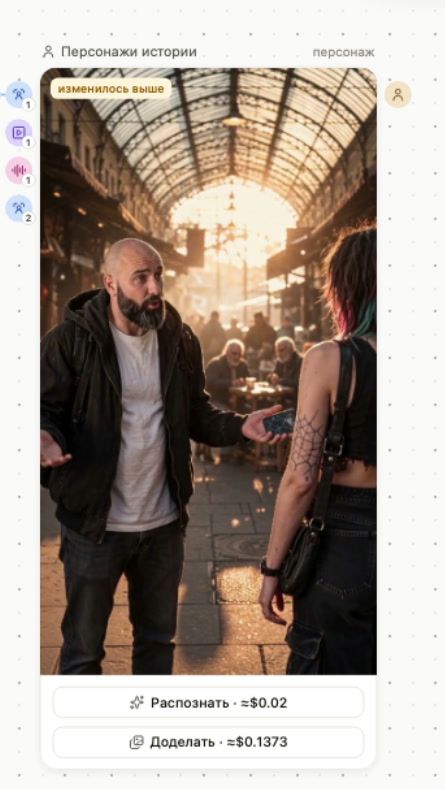
Revise a specific stage.
Scenes remain separate branches, and a result can be opened in the editor. Change text, timing or framing without generating the image or video again.
Editing and presentation explained ↗Organize projects around your work.
Workspaces organize your projects while keeping the shared library close by. They organize your own work; team collaboration requirements are discussed separately.
Explore workspaces ↗Connect your AI assistant.
MCP access gives an agent tools to work with projects and generations. Key permissions and spending controls define its access.
The MCP access guide ↗03 / PRACTICAL GUIDES
Start with the task, then choose the model.
Make your first video
Prepare your idea and materials, build scenes, review the result and move on to editing. The editor is easier to use on a computer.
Open the studio →Top-ups and pricing plans
The studio team currently handles top-ups and plan assignment. Your paid balance does not expire. This is a one-time top-up, not a subscription.
Discuss a top-up →What a project estimate includes
AI expenses for one successful pass. Human labor and rerolls are separate. The AI writers’ room is available through the studio team.
Estimate a project →Choose how to generate video
Starting frames, references and keyframes: what to prepare and how to select a model.
Get to know the interface
Cards, connections and actions inside a real project.
Follow a complete production
An author’s episode, from storyboard to scenes, editing and presentation.
04 / ON-DEMAND
One configuration. Three customer prices.
Choose a model and its settings. The calculator shows the final generation price for Start, Pro and Ultra under the current pricing policy. Changing a setting updates the quote, not your account plan.
Estimate a whole video: script, scenes and finishing →
Loading available models…
Your paid balance does not expire.
Top-ups and customer plans are currently assigned by an administrator. Start, Pro and Ultra determine generation prices; they are not ready-to-buy subscription packages. Some models have their own terms.
Terms of service ↗Prefer a finished result?
Tell us what you need. You can commission content or discuss a production workflow for your team.