 Vini Studio
MCP (Model Context Protocol) is a standard for connecting AI applications to external tools and data. Connect Vini Studio to your agent, and it gains access to studio actions through your key.
- You set the taskThe idea, materials, and working conditions
- Your agent calls ViniTools available to your key
- You review the resultA project in the studio and finished files
What you can ask your agent to do
- Understand a project. Read its graph, find a saved character or finished material, and check generation status and spending.
- Build the starting setup. Create a project, add and connect nodes, set model and quality, and use materials from your library.
- Run a production step. Generate an image, video, text, music, or voiceover. Studio tools expose the available models and settings.
- Collect the material. Get a download link, assemble clips, or trim a video. File links last 15 minutes.
Start with a specific task
Create a project called “New episode teaser.” Find the character named Vini in my library and build the setup for a scene featuring him. Choose a model for a five-second video. Show me the plan and estimated cost. Wait for my confirmation before running any paid generations.
This is a sample request for your agent. It carries out the work through several tool calls. Asking it to wait for confirmation sets the working order; permission to spend money is controlled separately by the key.
You choose what to allow
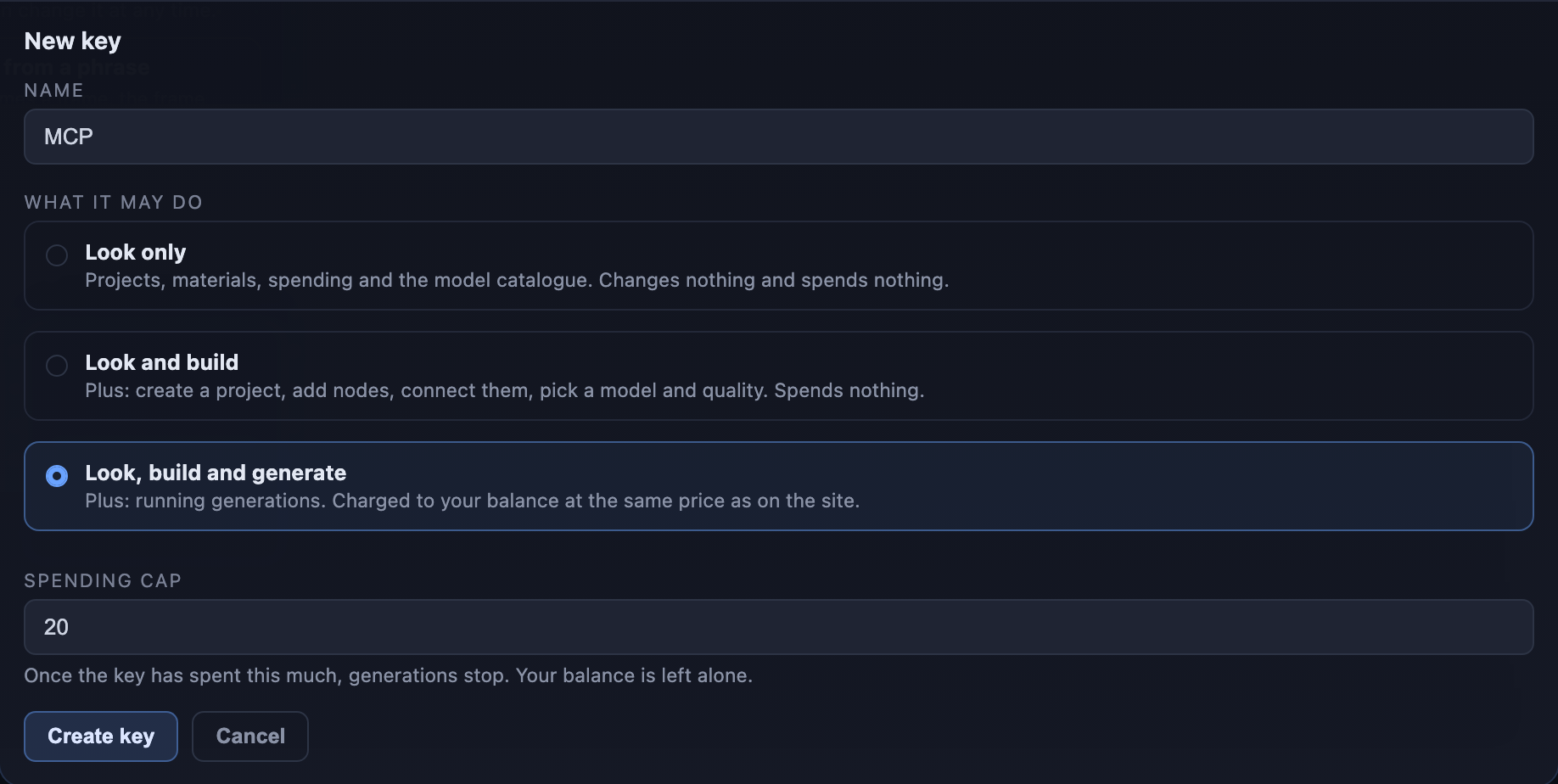
- Look only. Projects, materials, spending, and the model catalogue. A useful way to introduce your agent to the studio.
- Look and build. Also create projects and build the graph. Paid generation tools are unavailable to this key.
- Look, build and generate. The agent can run paid operations against your balance. You can set a spending cap when creating the key.
Generations use your studio balance
Paid operations through MCP follow the same pricing rules as the studio. Your agent can request an estimate before a run; the final cost of some operations is settled from actual usage.
How to connect
- Open the connection settings. Sign in to the studio: “⋮” → API → “Keys and setup” → “Create key.”
- Name the key and choose permissions. For example, “My agent.” Start with “Look only” to explore, or “Look and build” to put a project together.
- Copy the key immediately. It is shown once. If you lose it, create another. You can revoke an unwanted key in the same tab; subsequent requests with it will be refused.
- Choose your client. The account screen includes setup instructions for Claude Code, Cursor, VS Code, and Codex. Copy the configuration and add the connection in your client.
These are the same templates as in the account screen. Replace the placeholder in the Claude Code example with your key. For Cursor and Codex, set VINI_API_KEY in the environment that launches your agent; VS Code asks for the key through a hidden input.
Server address: https://vinistudio.app/mcp
Claude Code
# one line in your terminal
claude mcp add --transport http vini https://vinistudio.app/mcp \
  --header "Authorization: Bearer vini_sk_YOUR_KEY"
Cursor
// ~/.cursor/mcp.json — the key comes from an environment variable
{ "mcpServers": { "vini": {
    "url": "https://vinistudio.app/mcp",
    "headers": { "Authorization": "Bearer ${env:VINI_API_KEY}" }
} } }
VS Code
// .vscode/mcp.json — VS Code will ask for the key and hide the input
{ "servers": { "vini": {
    "type": "http",
    "url": "https://vinistudio.app/mcp",
    "headers": { "Authorization": "Bearer ${input:vini-key}" }
  } },
  "inputs": [ { "id": "vini-key", "type": "promptString", "password": true,
                "description": "Vini Studio key" } ] }
Codex
# ~/.codex/config.toml — Codex takes the variable NAME, not its value
[mcp_servers.vini]
url = "https://vinistudio.app/mcp"
bearer_token_env_var = "VINI_API_KEY"
The connection uses Streamable HTTP and a key in the Authorization header. These instructions cover the clients listed here. OAuth connectors in Claude.ai and ChatGPT are not supported yet.
Continue on the canvas
The graph your agent creates is saved in your project. Media can be attached to a specific node; without that attachment, it stays in your materials. For asynchronous video, the studio picks up the job state when you open the project.
Text responses, such as a script or prompt, are returned to the agent in full but are not automatically placed on the canvas. There is no single command to run the entire graph yet: the agent calls the steps individually.
The full list of capabilities
The tool catalogue is generated from the studio registry. Check it for what each tool does and which permissions it needs.
Connect your agent to your project
Start with a key for viewing: let your agent explore your projects and materials. Create a key with the permissions you need for building and generation.
Sign in and create a key →