 Vini Studio
Open a project and you will find characters, scenes, alternate images, and finished clips. At some point, a simple question comes up: where did this scene get that text? You want to follow the idea through to the result, then edit the right place.
We are exploring the new Vini Studio design through Garden City, a project with recurring characters, a branching script, and generated clips. It gives us a practical way to show how the interface helps you find your way around your own material. Each card puts the result at the centre, with prompts, connections, and common actions close by.
Where did this prompt come from? Now you can see
In a larger project, text often arrives from another node, such as a finished scene. The prompt now shows a chip naming that source. Hover over it to read the incoming text and highlight its connection to the source card.
In this example, a video receives its description from Scene 7. The tooltip says that the text comes from that connection and will be sent first. The video node’s own instructions remain underneath. You can see what came from the script and what was added for this particular shot.
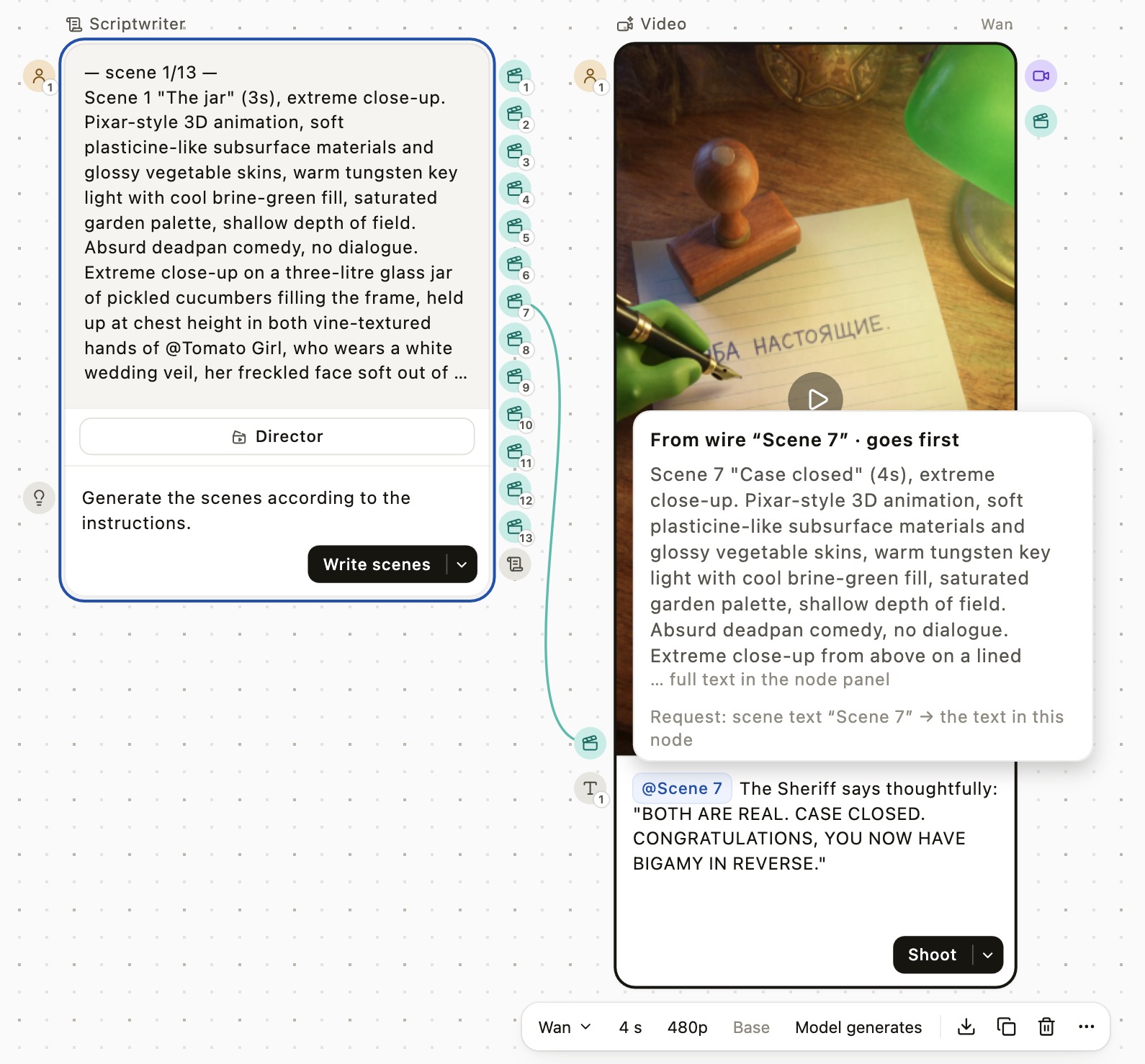
If a shot takes the story in an unexpected direction, you have a clear place to start: check the original scene or adjust the instructions for this generation.
“We can see how the system works right on the canvas.”From the creator’s redesign walkthrough, translated from Russian
Edit the idea right on its card
Suppose the next episode needs a different conflict. Select the text node and change its instructions on the canvas. The field is inside the card, close to its output, so a routine edit does not require hunting through the right panel.
The same approach helps with images and video: you can keep the result in view while adjusting the direction for another take. Longer text has a full preview or editor. The compact card helps you navigate the project, with the details available when you need them.
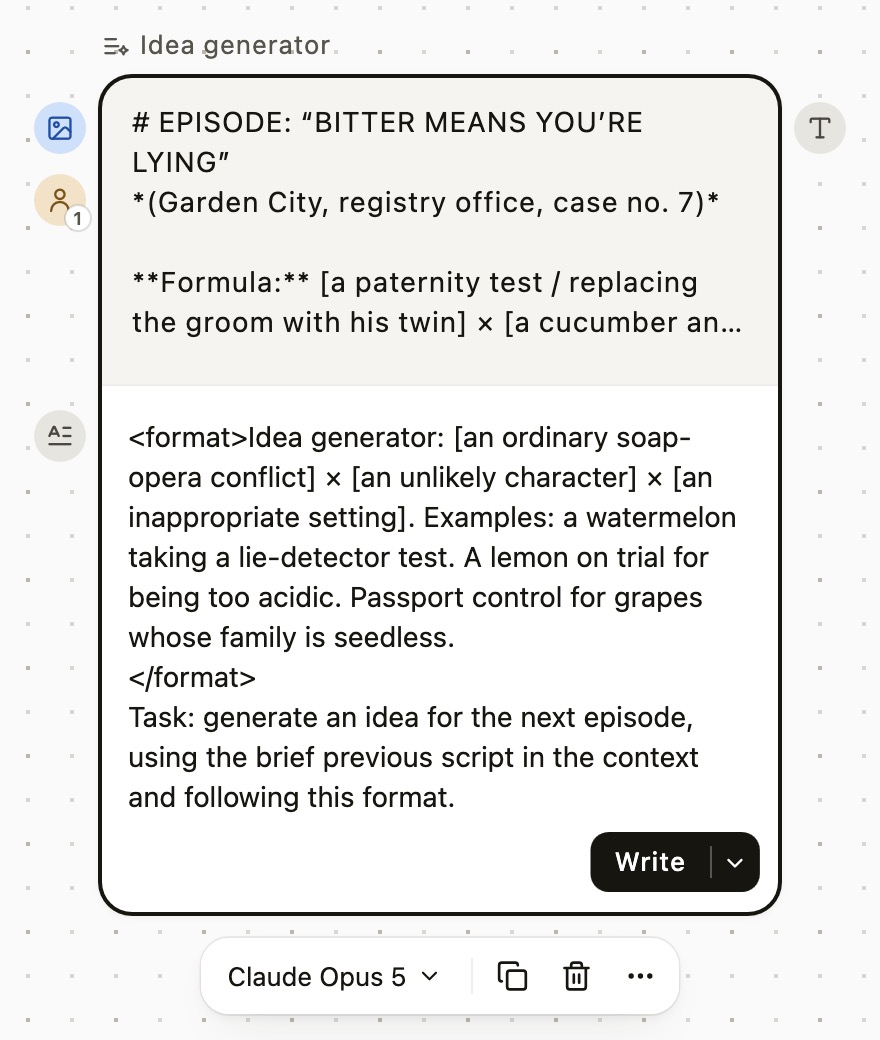
You have some text. What comes next?
At the end of the walkthrough, we build a small new branch. Drag from the text output into an empty area to open a menu asking what you want to do with it. Choose “Draw from the text”: the studio adds an image card and connects it to the source.
The same gesture from an image output offers different actions. Animate adds a video node that uses the image as its opening frame. You can also use an image as the ending of a clip or take it into another branch as a reference. The choices follow the material already on your canvas.
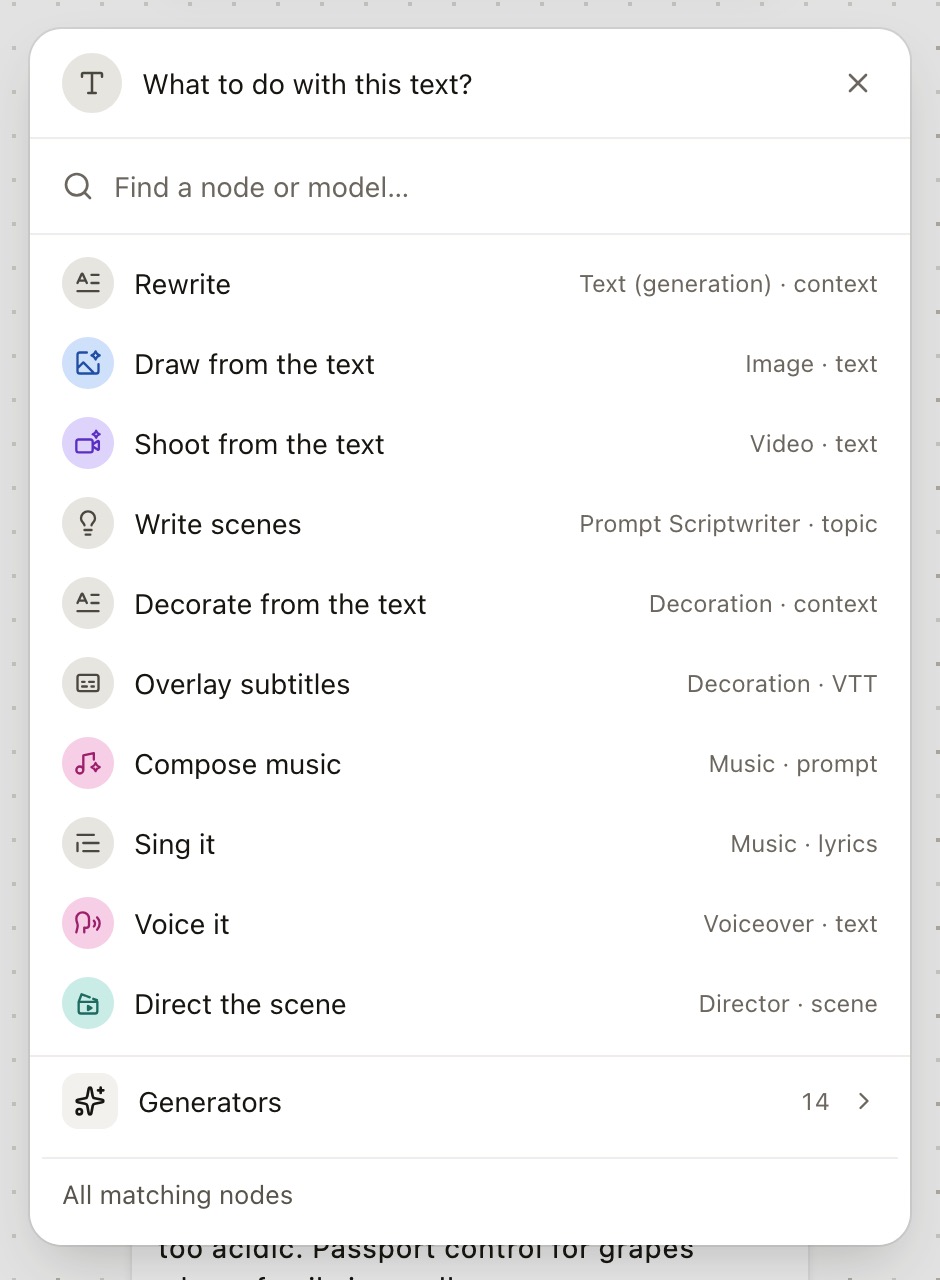
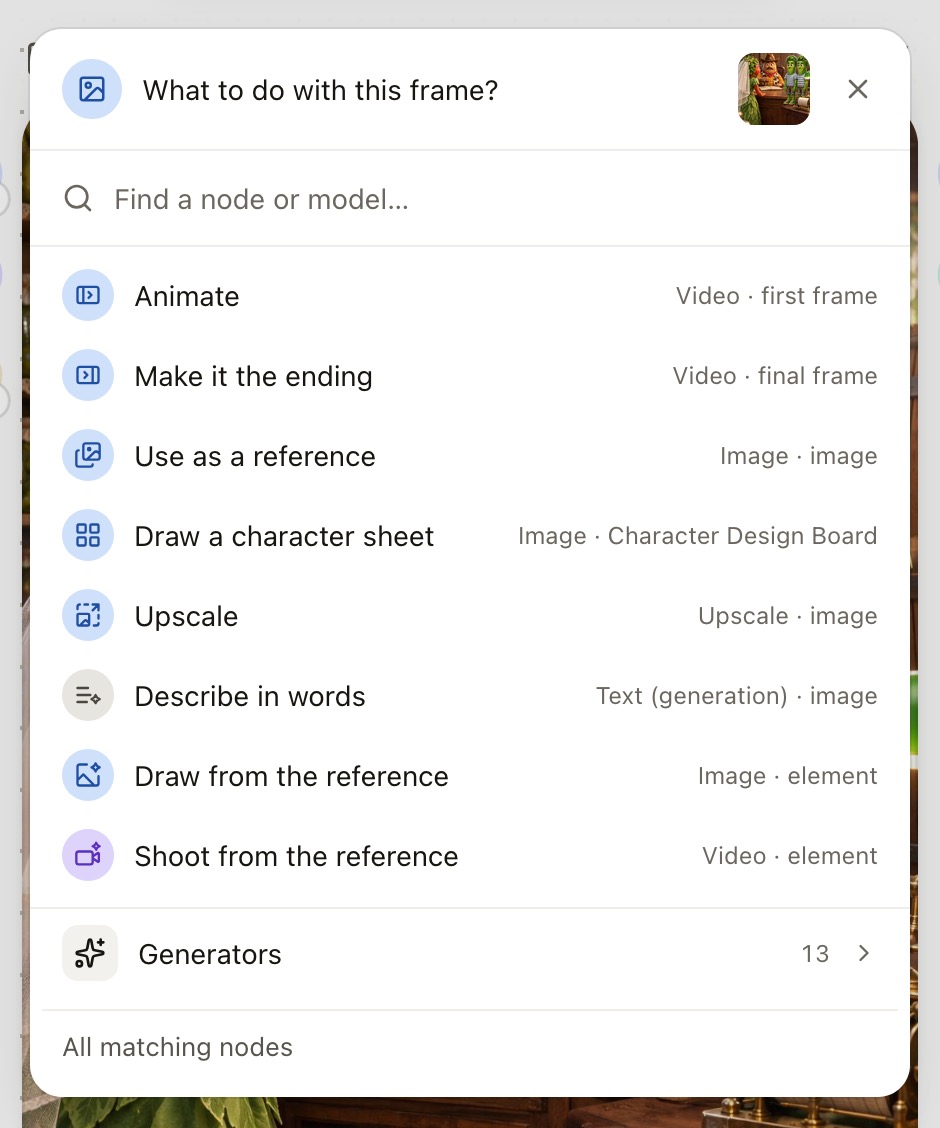
- 01TextDescribe the ideaDraw from the text
- 02ImageCreate an opening frameAnimate
- 03VideoAdd movement
This part of the recording demonstrates connecting the steps. Images and video are created when you run them, after reviewing the settings and cost.
Recognise the character and understand the connection
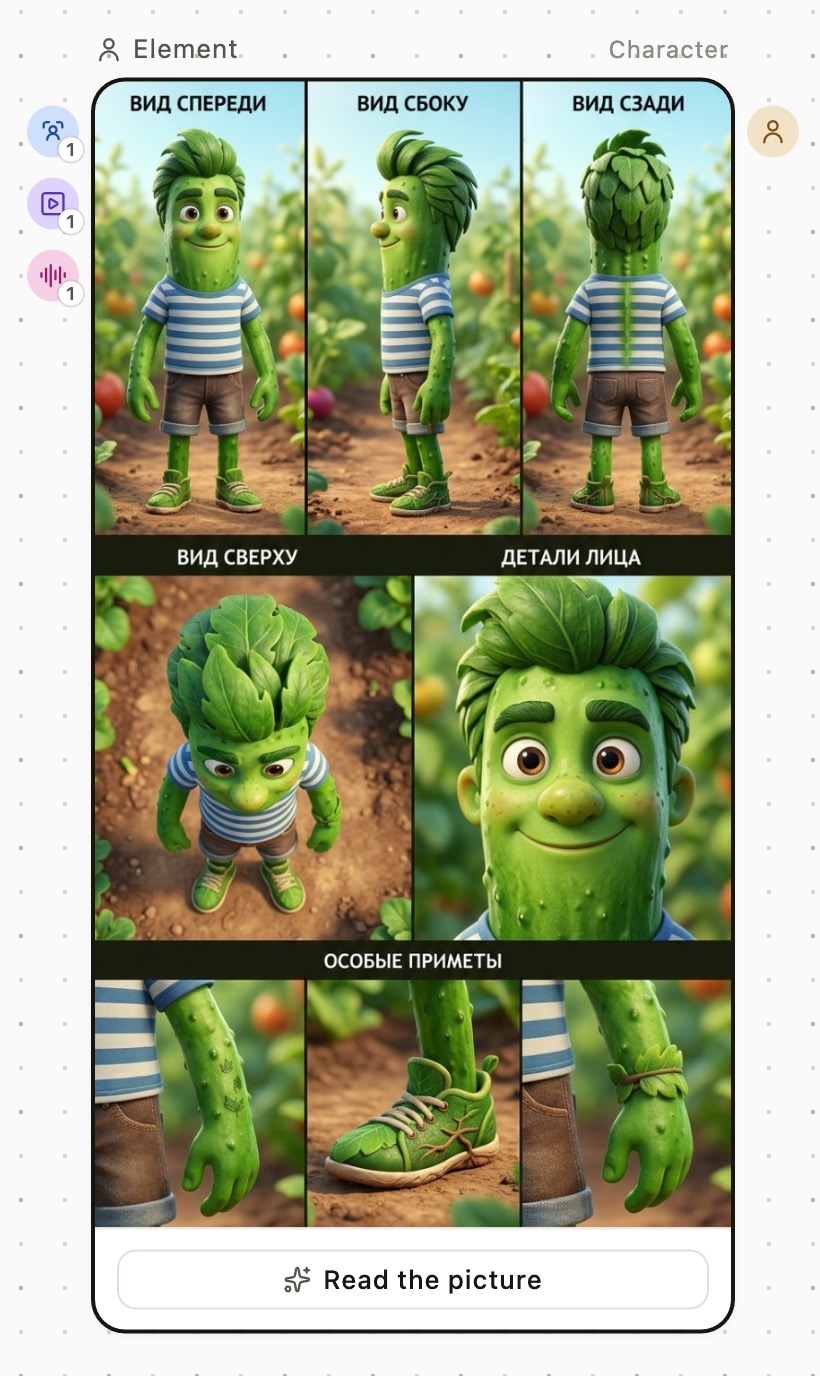
Garden City has a recurring cast, each with reference views. In the new Element card, the image takes most of the space, so you can recognise the cucumber character and inspect his reference views at a glance. Inputs and outputs sit outside the card’s edges to leave more room for the material itself.
Colour helps distinguish the type of content; an icon identifies the connection’s role. Hover to see the input or output name. This is especially useful for video: an opening frame, an ending frame, and a character reference serve different purposes even though all three can be images.
Choose a model, make another take, download the file
Common actions sit beside the selected card. The model, available settings, and buttons appear underneath. The main button on the card names the action: write, draw, or shoot. You can move directly from reviewing the result to deciding what to do next.
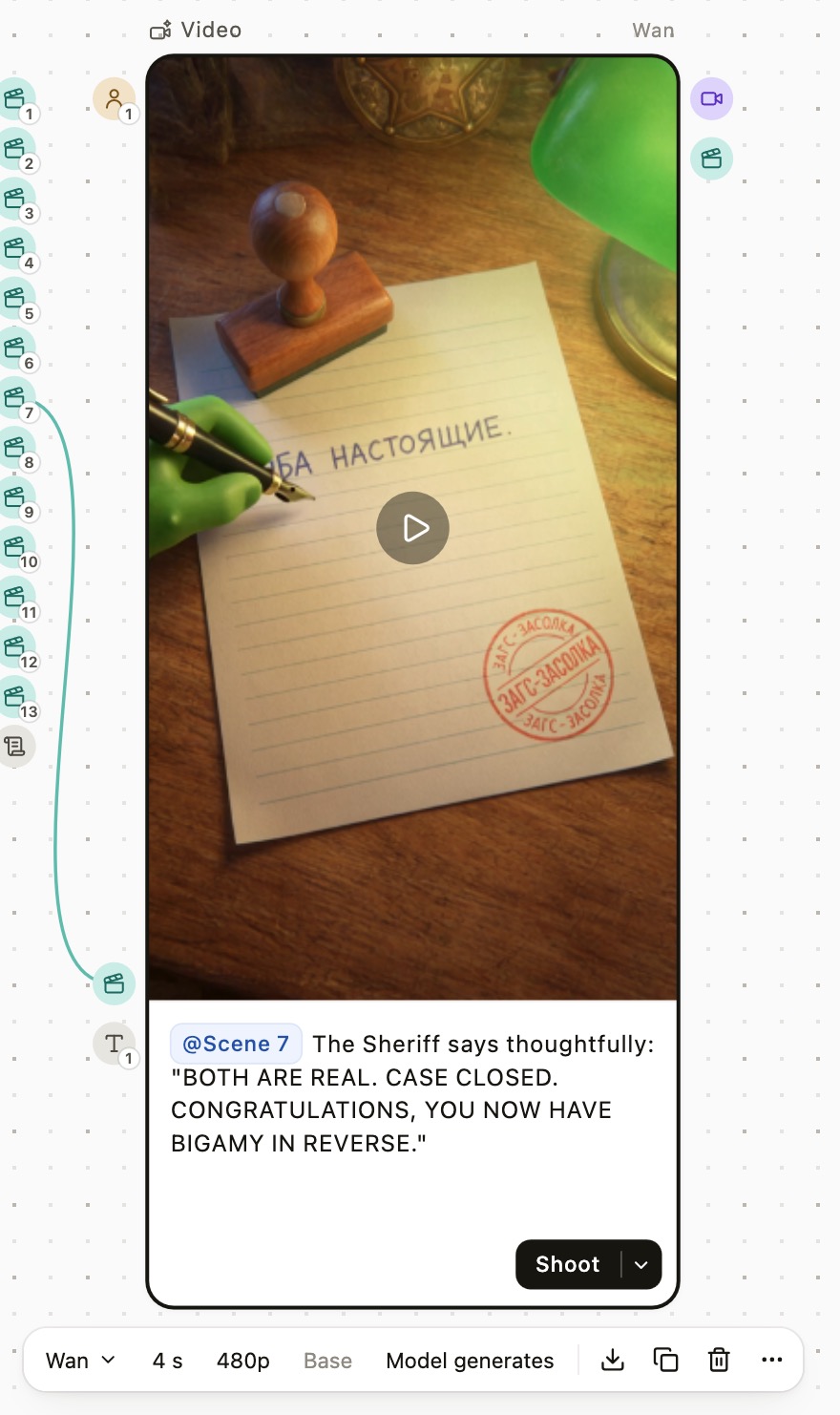
- Choose a model. Open the selector beside the card and set up the next run.
- Make another take. Use the run menu to regenerate a finished result.
- Download the result. A card with a finished video, image, or audio file provides quick access to that file.
A canvas that suits the way you work
The light palette gives images room to stand out. If you prefer a dark workspace, choose a different background in the canvas settings, such as Cool. Cards, fields, and panels change with it, while the new interactions stay the same.
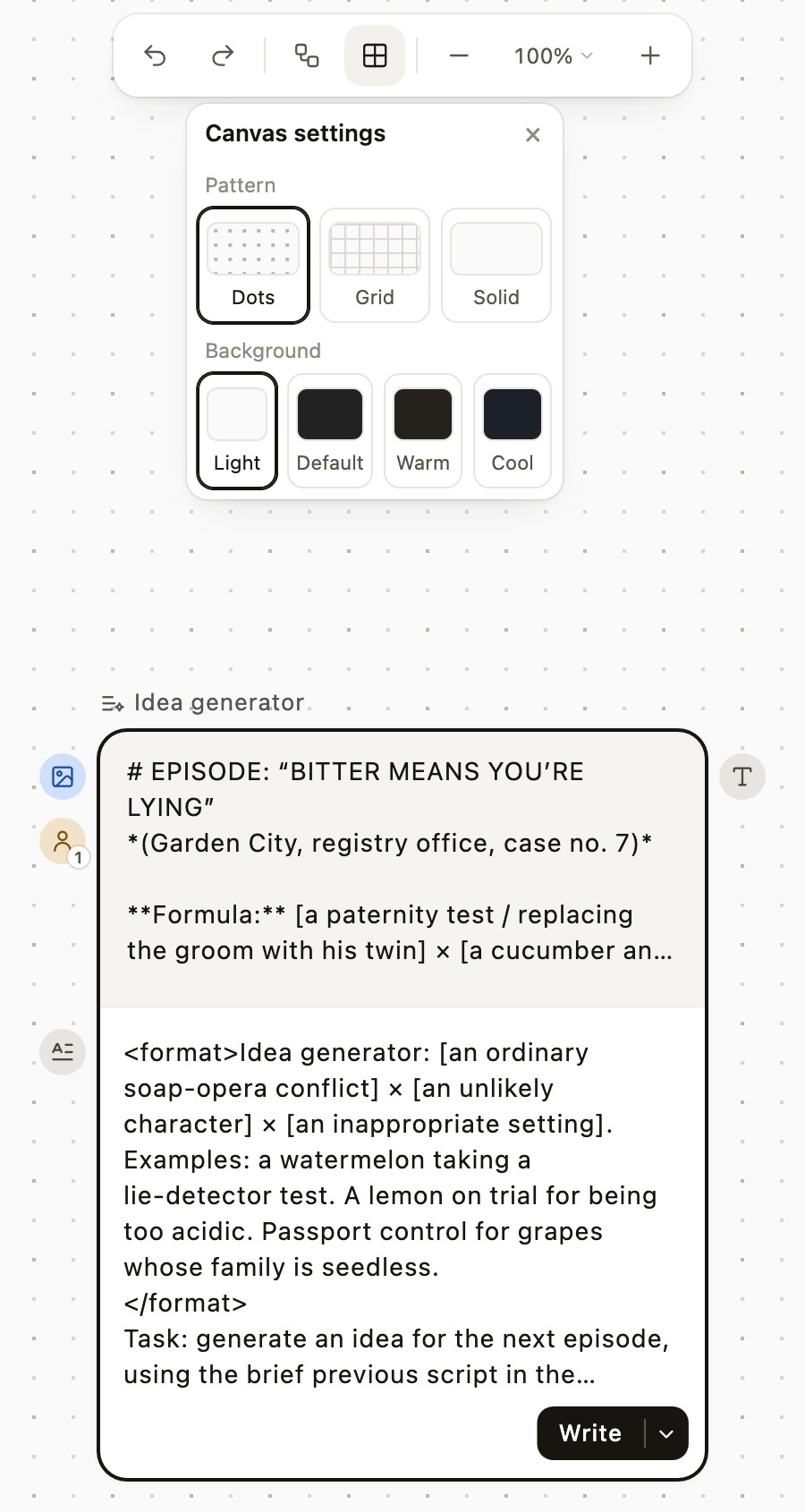
A larger project may need rearranging: after the update, cards can sit too close together. The recording shows an existing graph being reorganised, including a horizontal layout. You can tidy the layout, arrange it again, or arrange it horizontally, and undo the result.
More on organising a large project →
Start with a project you know
Open a finished scene, inspect its prompt source, and try extending one branch through the action menu. These small transitions are where the redesign comes into focus: you can see your material, understand its connections, and start shaping the next shot.
Based on the creator’s September 27, 2026 walkthrough. Screenshots recreate the examples in the studio’s English interface, with translated example text and the original Garden City artwork.
Create videos in Vini Studio
Ideas, characters, scenes, sound and editing in one project. Work independently or discuss content production with our team.
Get started in the studio →Sign in with Telegram or Google. No account needed in advance — it is created for you.