
Generation rarely lands perfectly on the first try. A banner sits on a face, a line runs half a second long, the source is horizontal. The usual answer is "regenerate and pay again." Here you edit by hand, and re-assembly costs nothing.
Decorate: the AI’s plan becomes yours
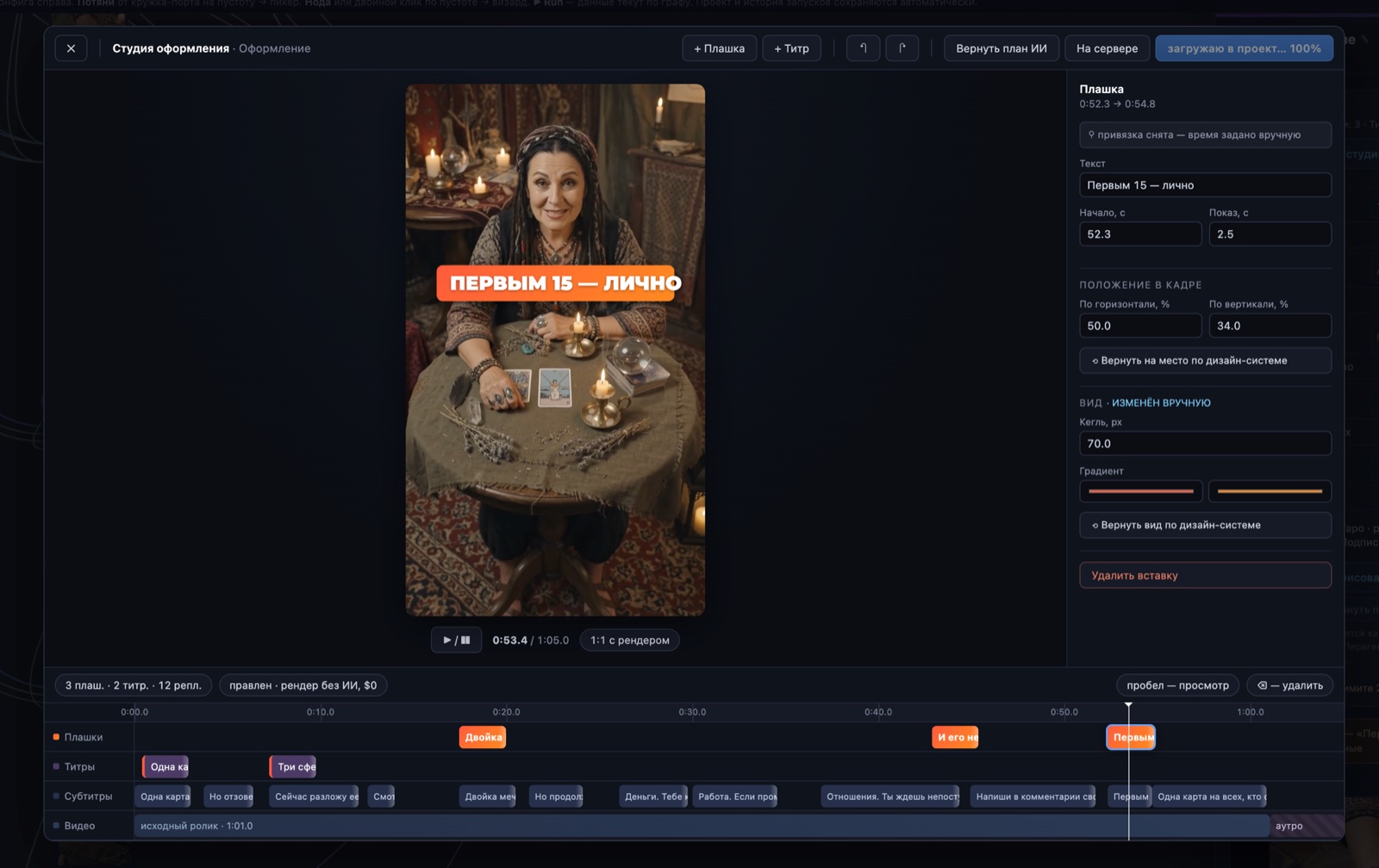
The Director proposes a decoration plan — where and when banners, titles, subtitles, and the outro appear. In the studio that plan stops being the AI’s plan and becomes the project’s document: you edit the text, the timing ("Start" and "Show"), the on-screen position, the font size, the gradient. Drifted off-brand? The "restore to the design system" button puts it back the way it was.
Montage: trim, speed up, reframe
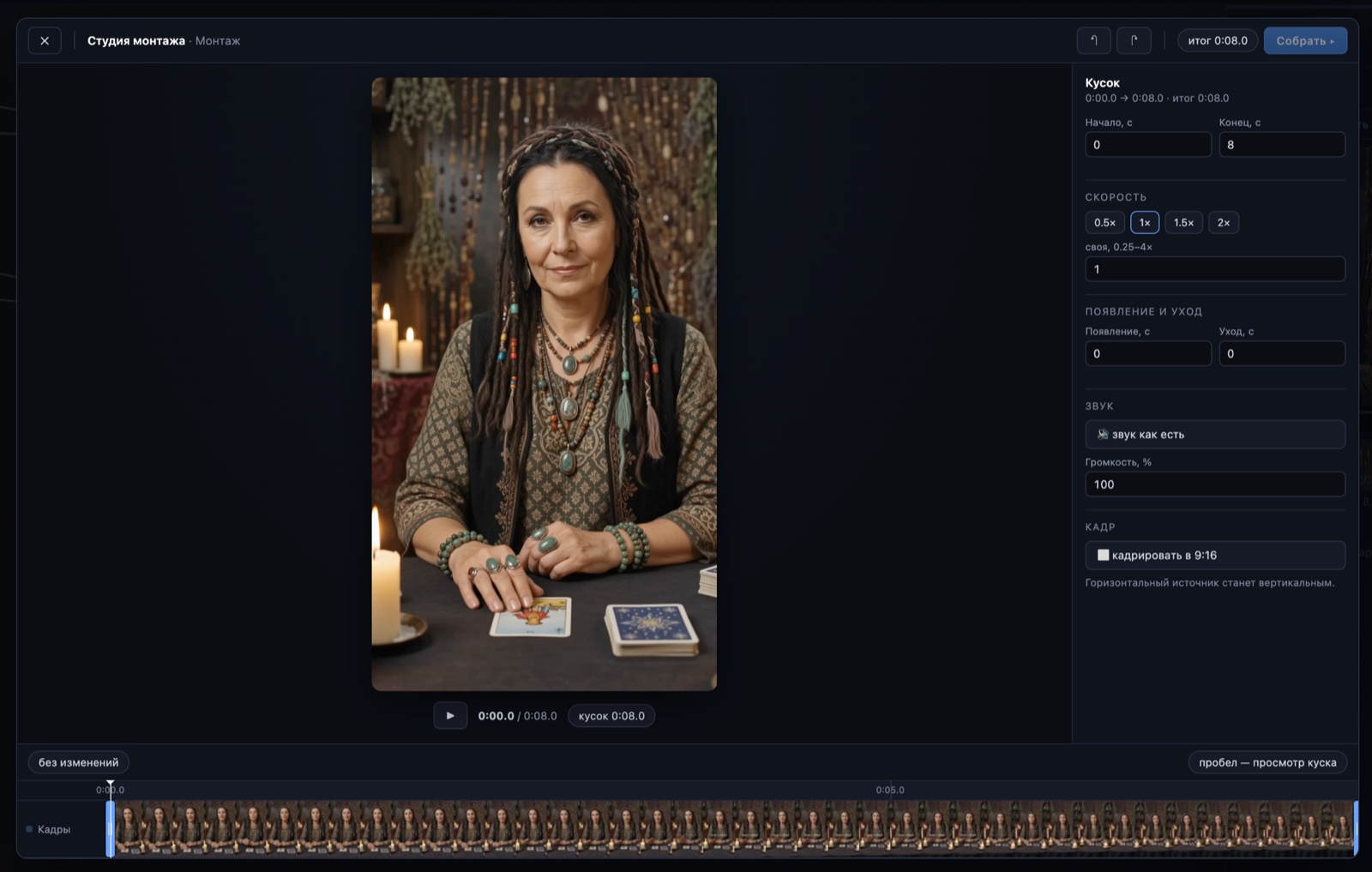
The same studio, just for the clip. On a large storyboard you set the start and the end, and the playhead follows your mouse — hitting the exact moment is finally easy. Speed runs from 0.25× to 4×, fades on entry and exit, audio as-is or at your own volume. And the key thing for vertical — crop to 9:16: a horizontal source becomes vertical.
Not right? Hit Run again — the whole thing, at the full price of generation. Even just to nudge the banner over by a centimeter.
You move the banner, trim the clip, crop to 9:16 — and re-assemble. Render without AI, $0: not a single paid model call.
The timeline is sacred: the ban is addressed to the machine. LLMs and assemblers don’t touch it — a human edits it, explicitly and visibly.— the studios’ principle
How it works — step by step
- The AI proposes. The Director sets the decoration plan and the generator produces the clip — as a starting point, not a verdict.
- You open a studio from the node. Decorate for graphics, Montage for the clip. A real-time 9:16 preview.
- You edit by hand. Text, timing, position, font size (Decorate); trim, speed, fades, 9:16 crop (Montage).
- You re-assemble for $0. The render runs without AI — not a single paid generation; the finished clip returns to the project.
Соберите своего героя в Vini Studio
Облачный нодовый конструктор AI-видео: из идеи текстом — в готовый вертикальный ролик 9:16. Проект в закрытой бете — ищу авторов и партнёров.
✈️ Вступить в Telegram →Апдейты, ранний доступ и связь — в канале.